







 Support Center
 Contact us
HiTooler File Finder
- Quickly find any file on macOS.
- Filter files by filename, creation date, modification date, file size, etc.
- Monitor system file changes and update the list accordingly.
- Find duplicate files on your system.
- Find files by keywords in their content.
FREE TRIAL
for macOS 10.13+
BUY NOW
Money Back Guarantee


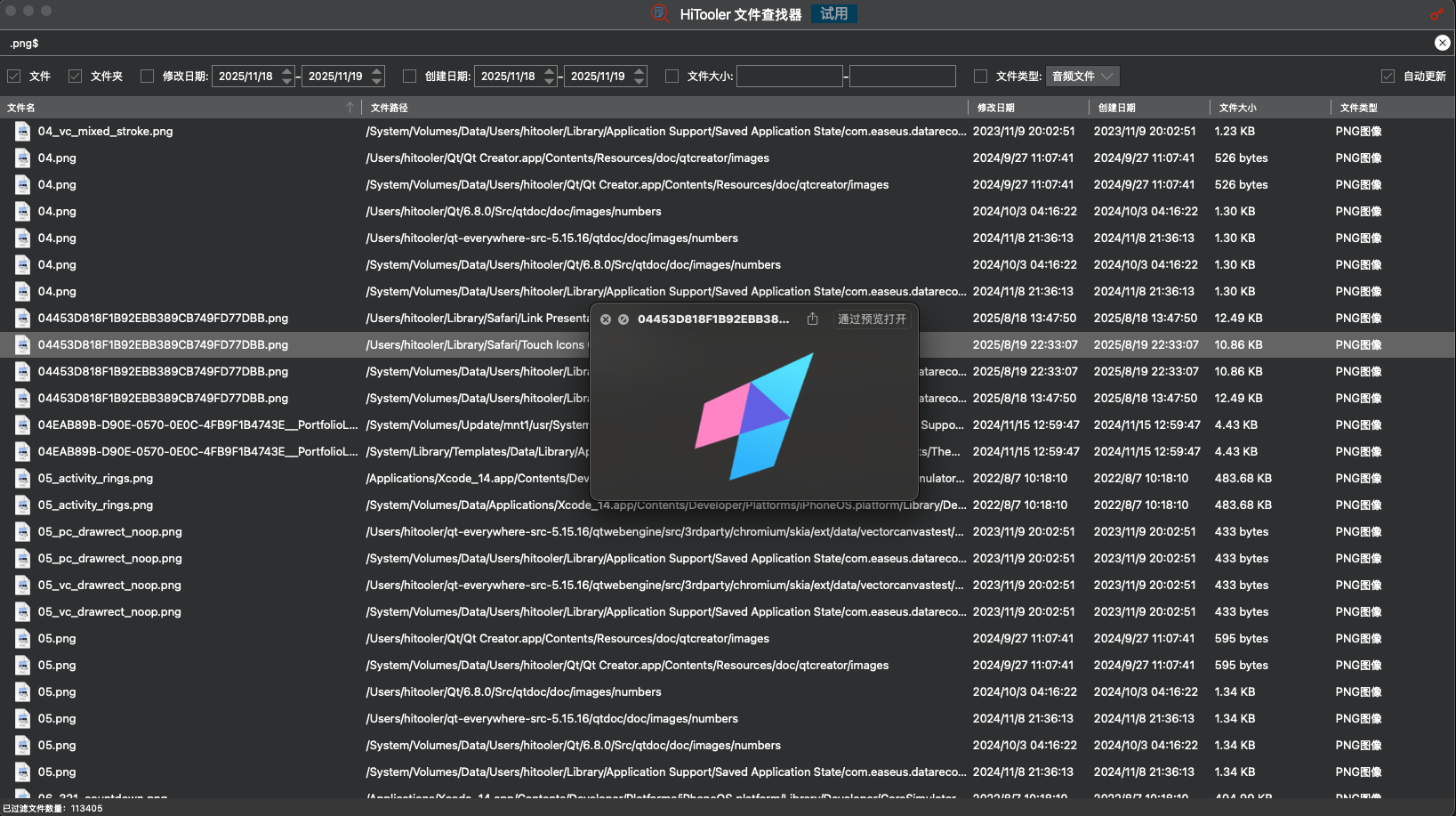
Why choose HiTooler File Finder?
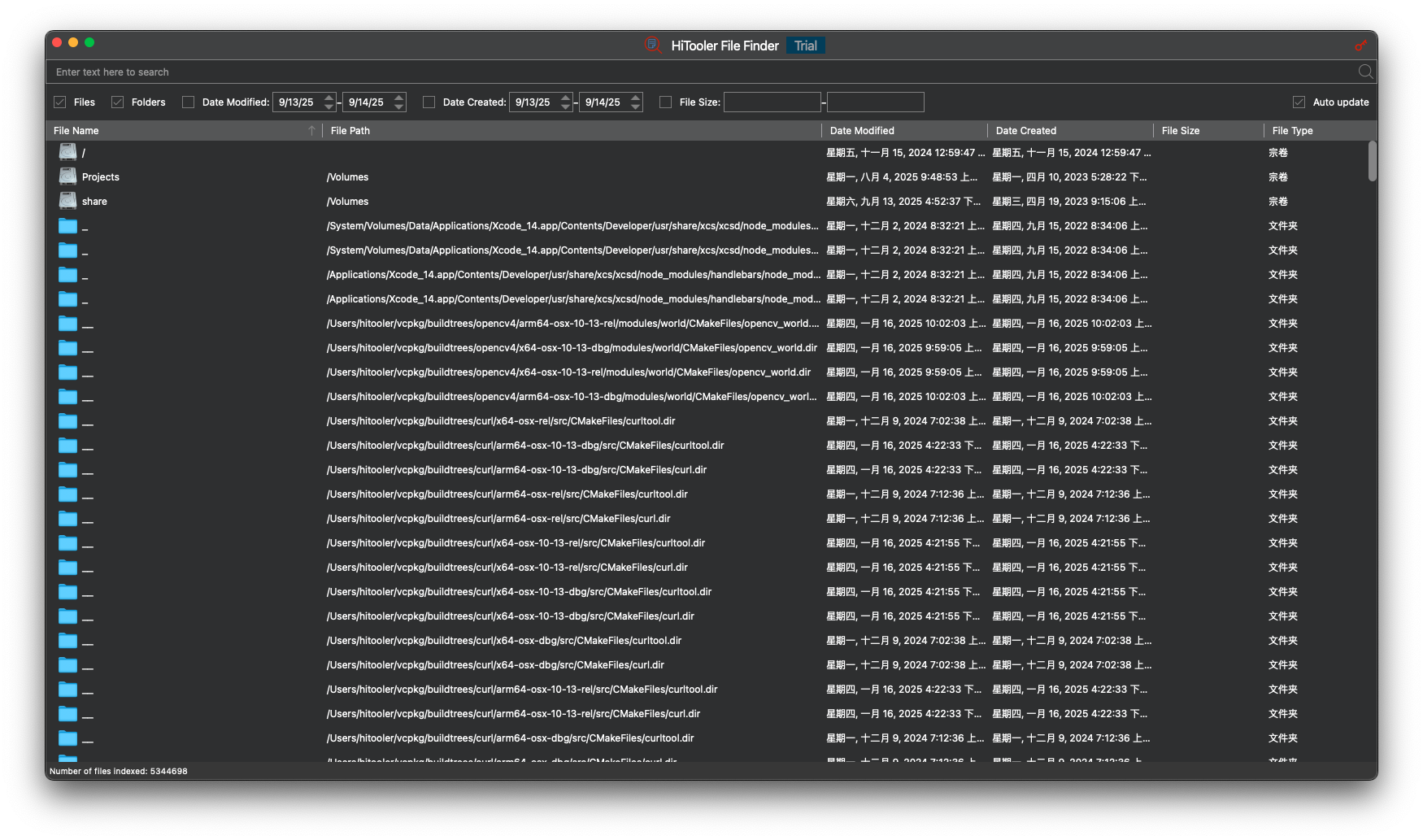
Quickly find any file on macOS.
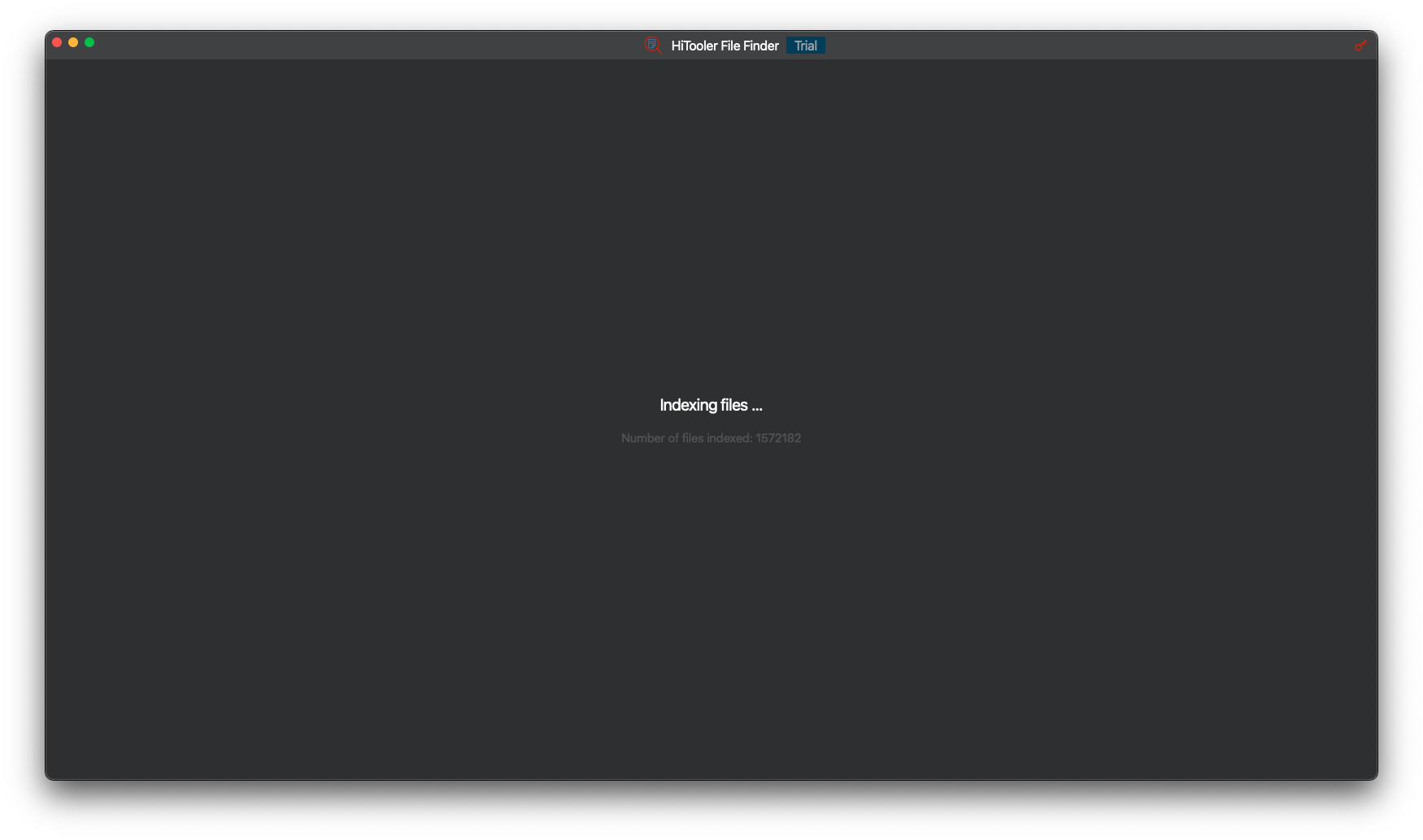
We quickly indexed all files on the system (including system files and hidden files). We tested a system with 5 million files and completed the indexing in just one minute. However, different computers have different performance levels and file counts, which will result in varying indexing times.
You can search for any file by keywords in its filename, or filter by creation date, modification date, size, etc.
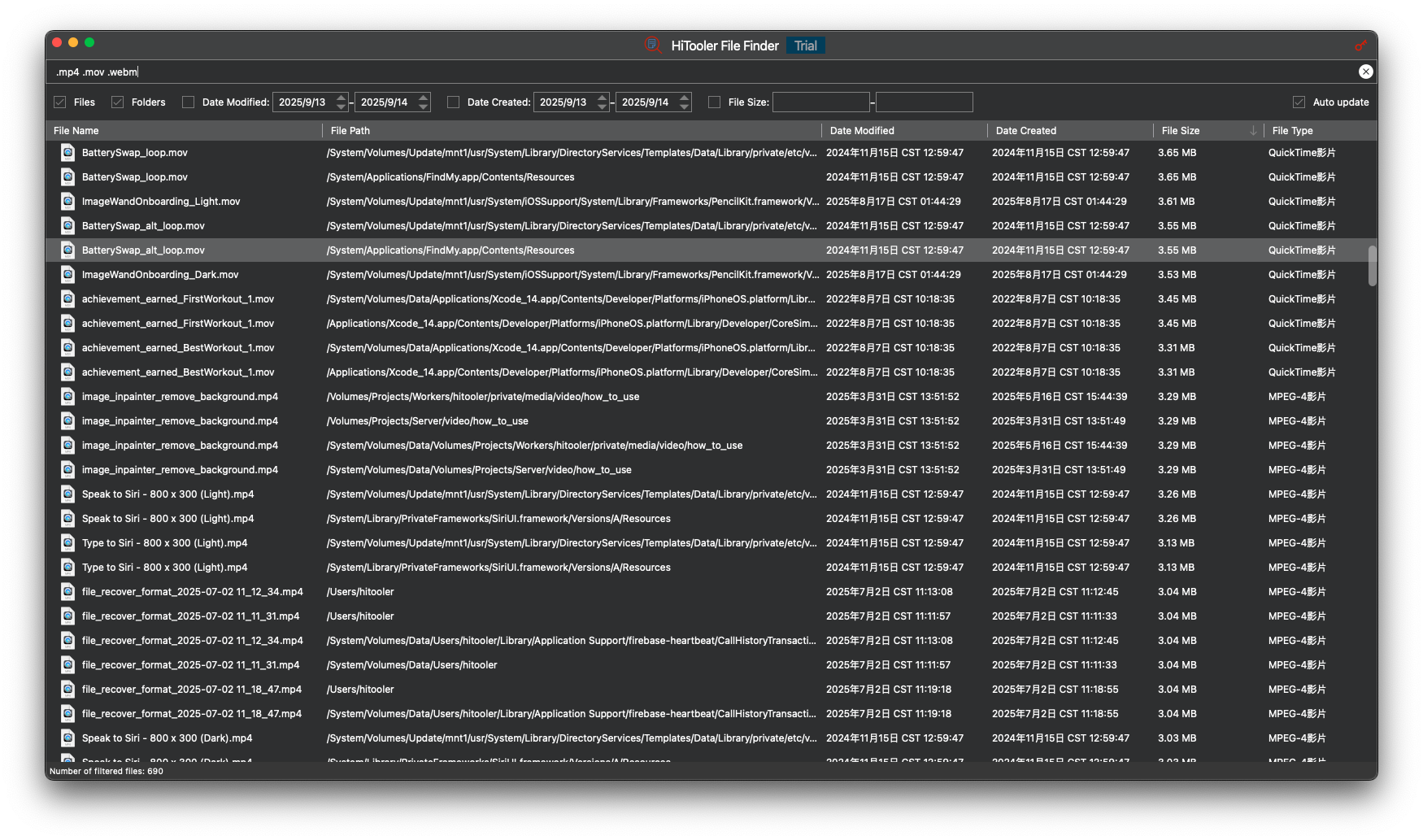
You can use multiple filenames to find all files that meet your criteria. For example, you can use ".mov .mp4 .m4v" to find all video files on the system.
You can search for files by keywords in their content. For example, you can enter ":txt abcd:/.html$" in the search box and press "Enter" to find all .html files whose content contains "abcd".
File searching, filtering, and sorting are typically completed within 2 seconds.
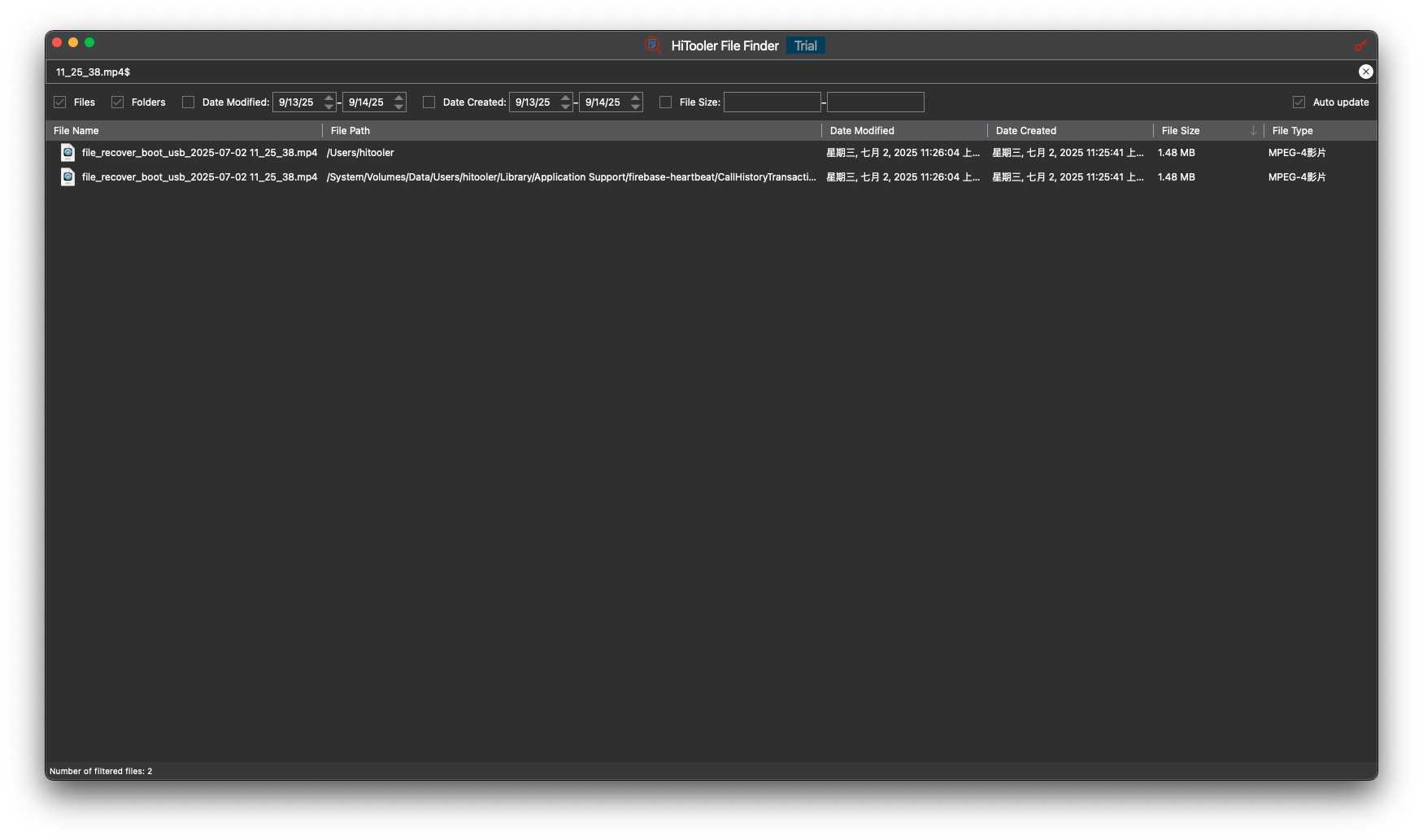
Search for files by filename
You can enter a filename in the search box to search for files, or you can enter keywords from the filename to search for files. For example, enter "abc" to search for all files whose filenames contain "abc".
You can enter "^abc" in the search box to search for all files whose filenames begin with "abc".
You can enter "def$" in the search box to search for all files whose filenames end with "def".
You can enter "^abcdef$" in the search box to search for all files with the filename "abcdef" (case-insensitive).
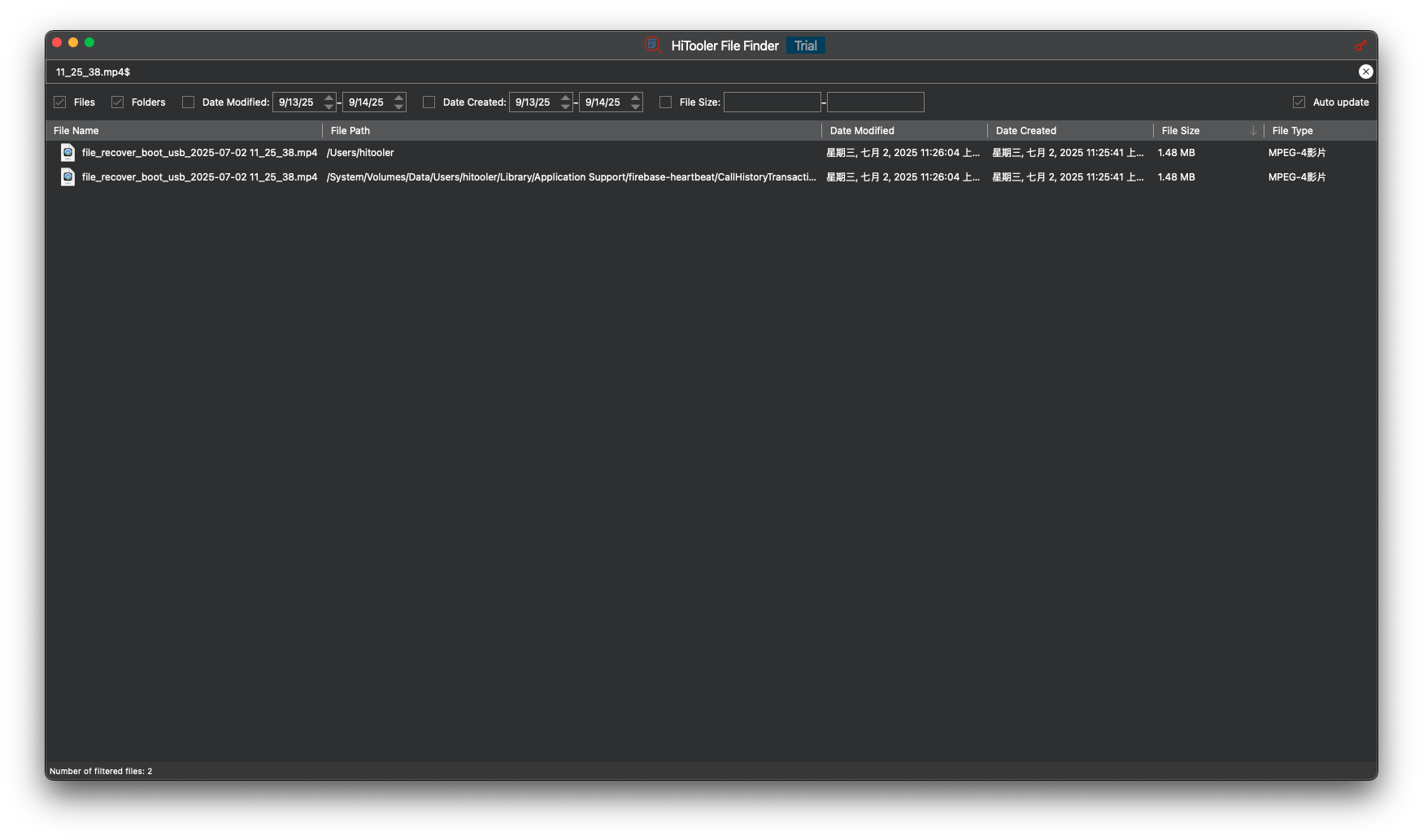
You can enter multiple texts (separated by space) in the search box to search, for example, enter ".mov$ .mp4$" in the search box to search for all .mov and .mp4 files.
If your filename contains spaces, you need to put it between two double quotes '"'. For example, type '"abc def"' in the search box to search for all files whose filenames contain "abc def".
Search for files in the specified folder
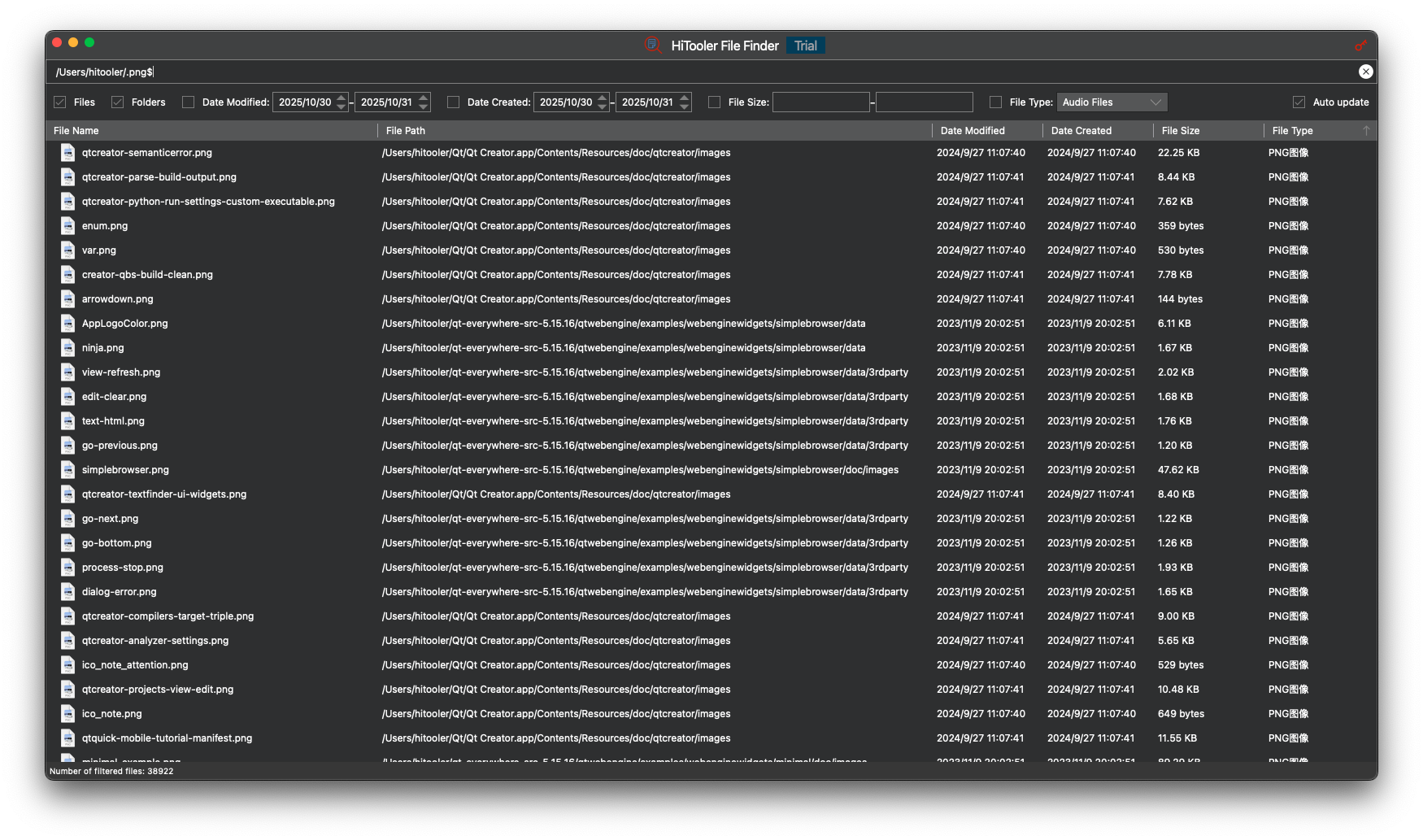
You can search for all .png files in the "/Users/hitooler" directory by entering "/Users/hitooler/.png$" in the search box.
Similarly, you can search for all .mp4 and .mov files in the "/Users/hitooler" directory by entering "/Users/hitooler/.mp4$ .mov$" in the search box.
You can enter "/Users/hitooler/abc def" in the search box to search for all files in the "/Users/hitooler" directory whose filenames contain "abc" or "def".
You can search for all files in the "/Users/hitooler" directory whose filenames contain "abc def" by entering '/Users/hitooler/"abc def"' in the search box.
Note that if you enter "/Users/hitooler/" in the search box, it will search for all files in the "/Users/hitooler" directory, while if you enter "/Users/hitooler", it will search for all files in the "/Users" directory whose filenames contain "hitooler".
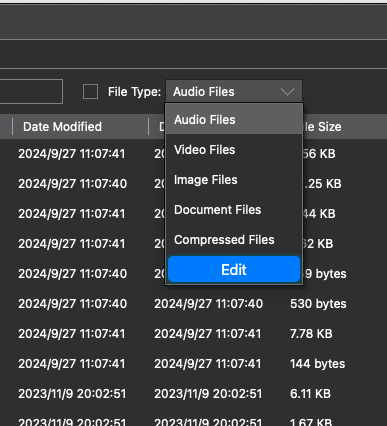
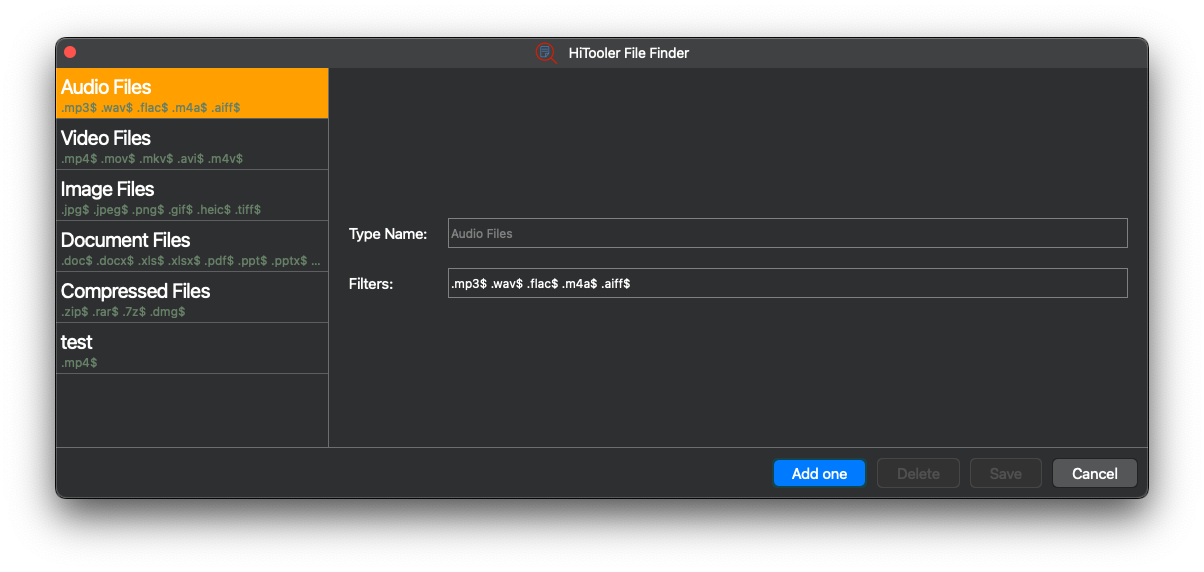
Quickly search for files using predefined file types
You can select predefined audio, video, image, document, and compressed file types for quick searching.
You can also add custom file types or custom search rules for file types.
Find duplicate files
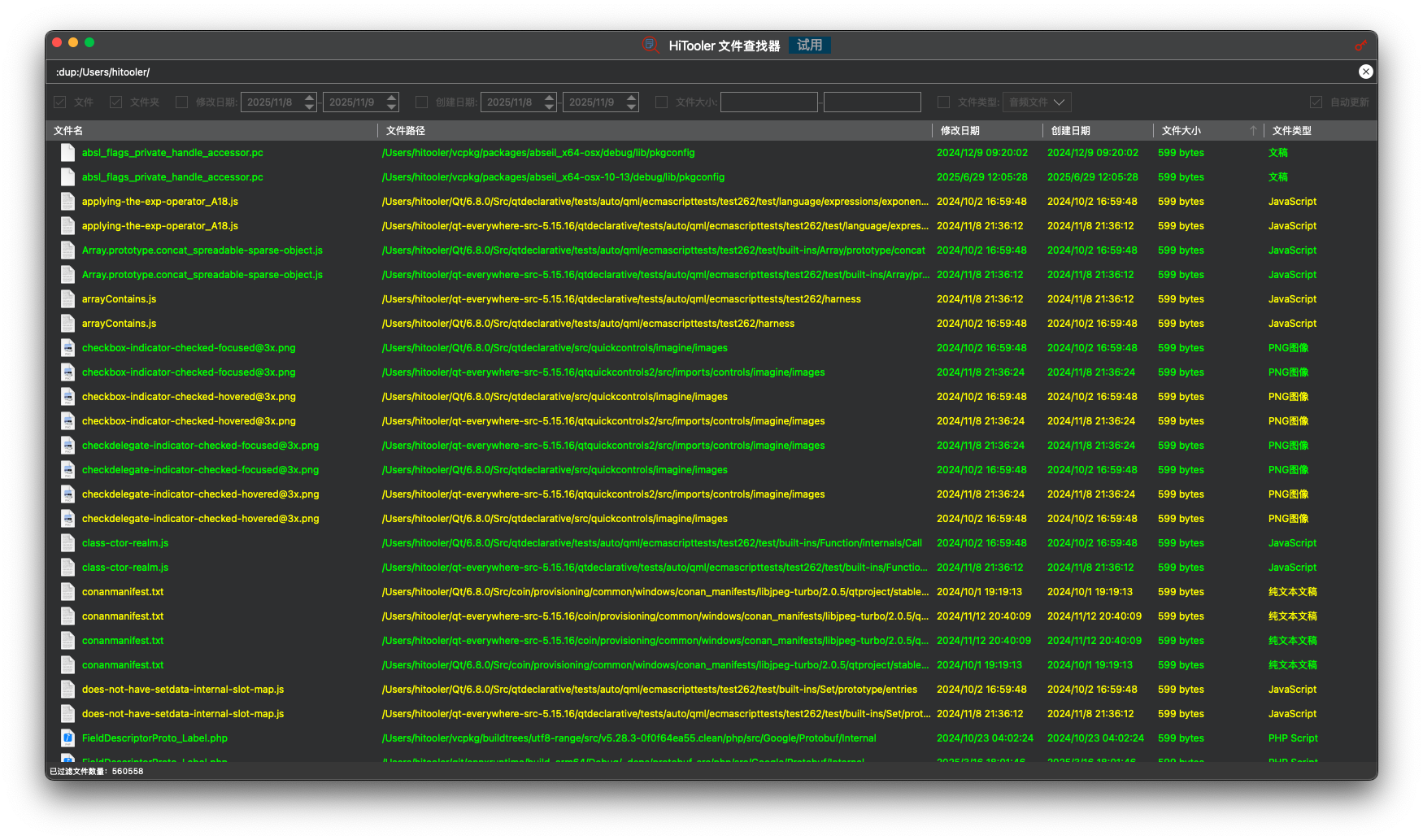
You can type ':dup:/' in the search box and press 'Enter' to find all duplicate files on your system. Alternatively, you can type ':dup:/Users/hitooler/' and press 'Enter' to search for all duplicate files in the '/Users/hitooler' directory.
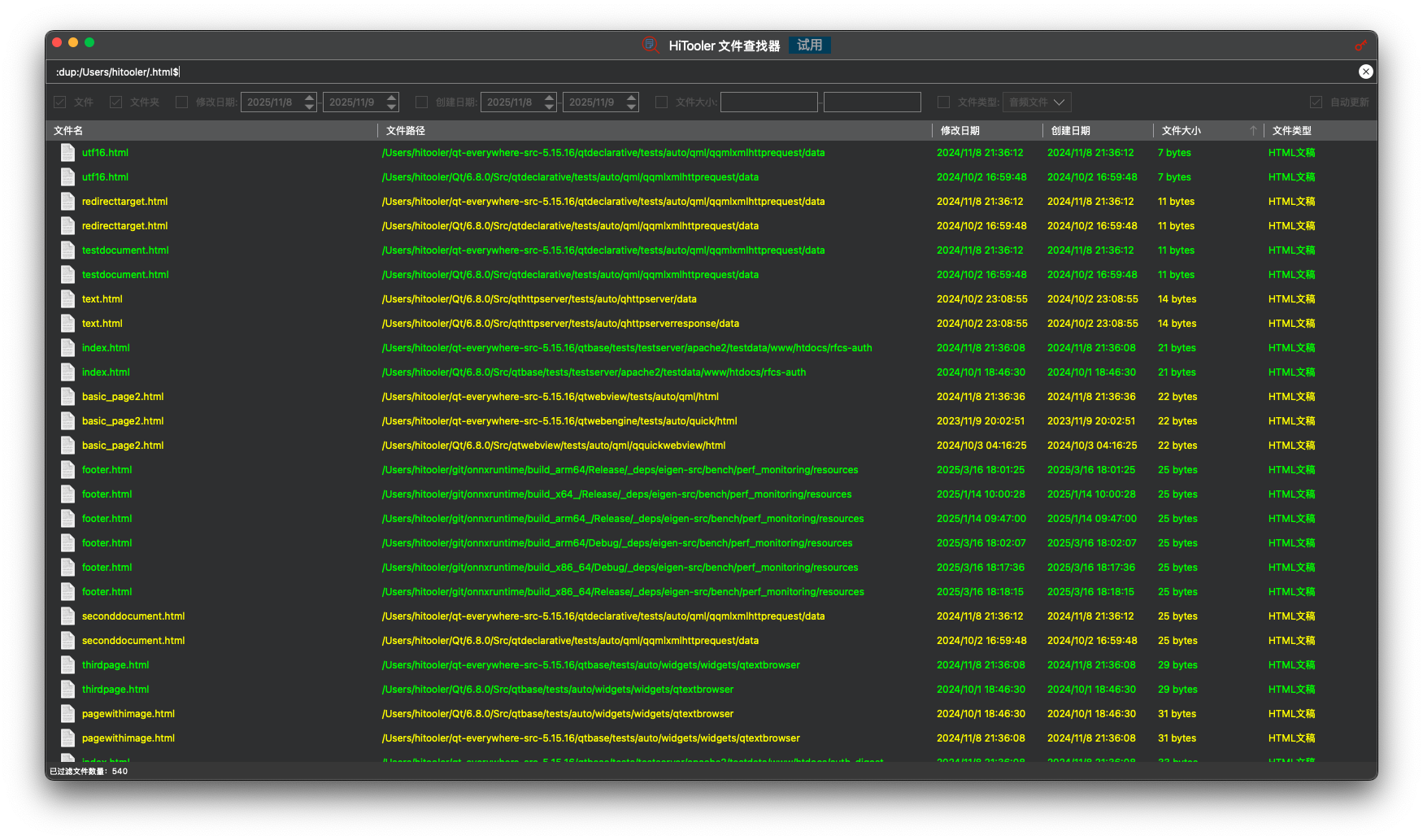
If you only want to search for duplicate files of a specific file type, you can type ':dup:/.html$' and press 'Enter' to find all duplicate .html files. Similarly, you can type ':dup:/.mp4$ .mp3$' and press 'Enter' to search for all duplicate .mp4 and .mp3 files.
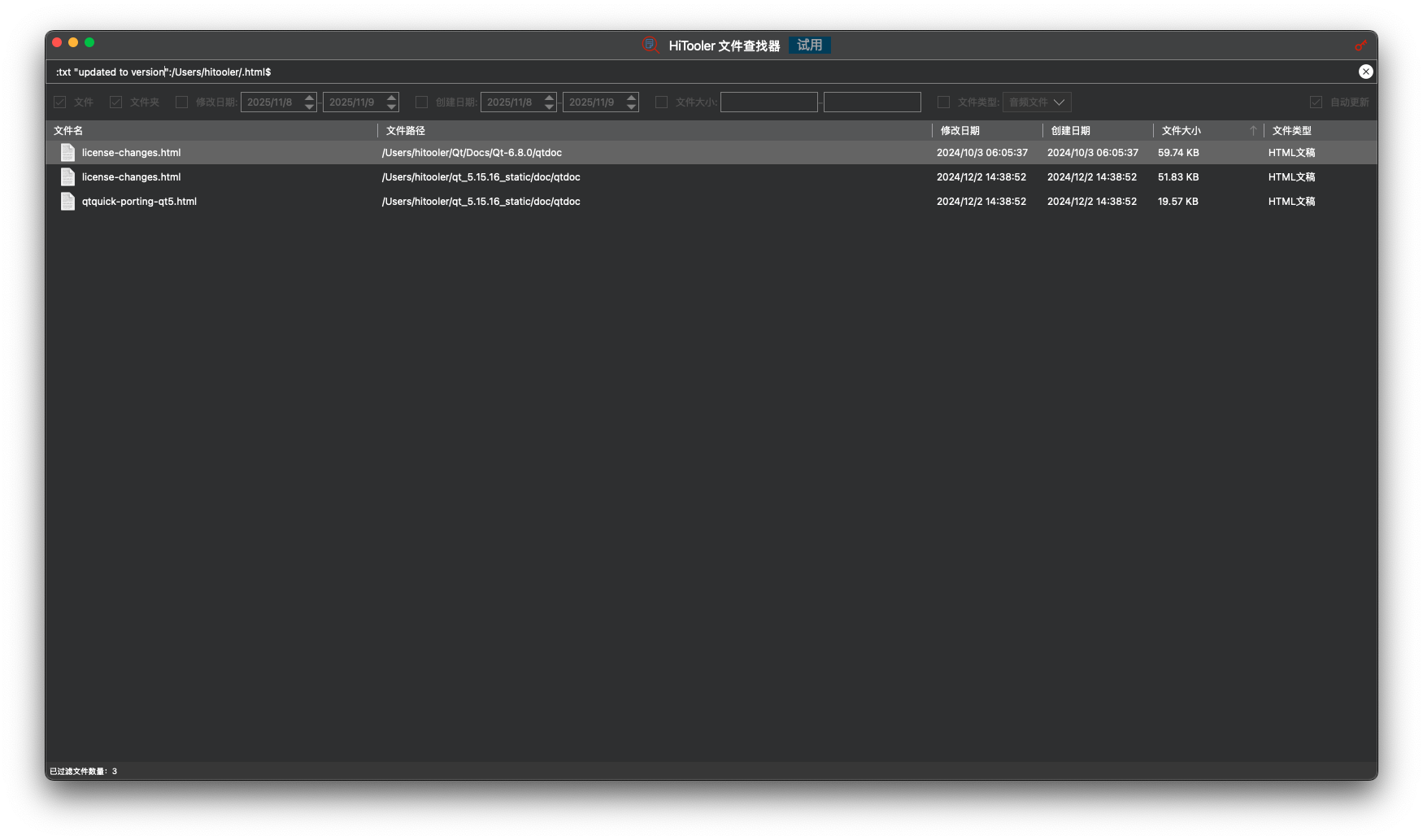
Search for files using keywords in the file content
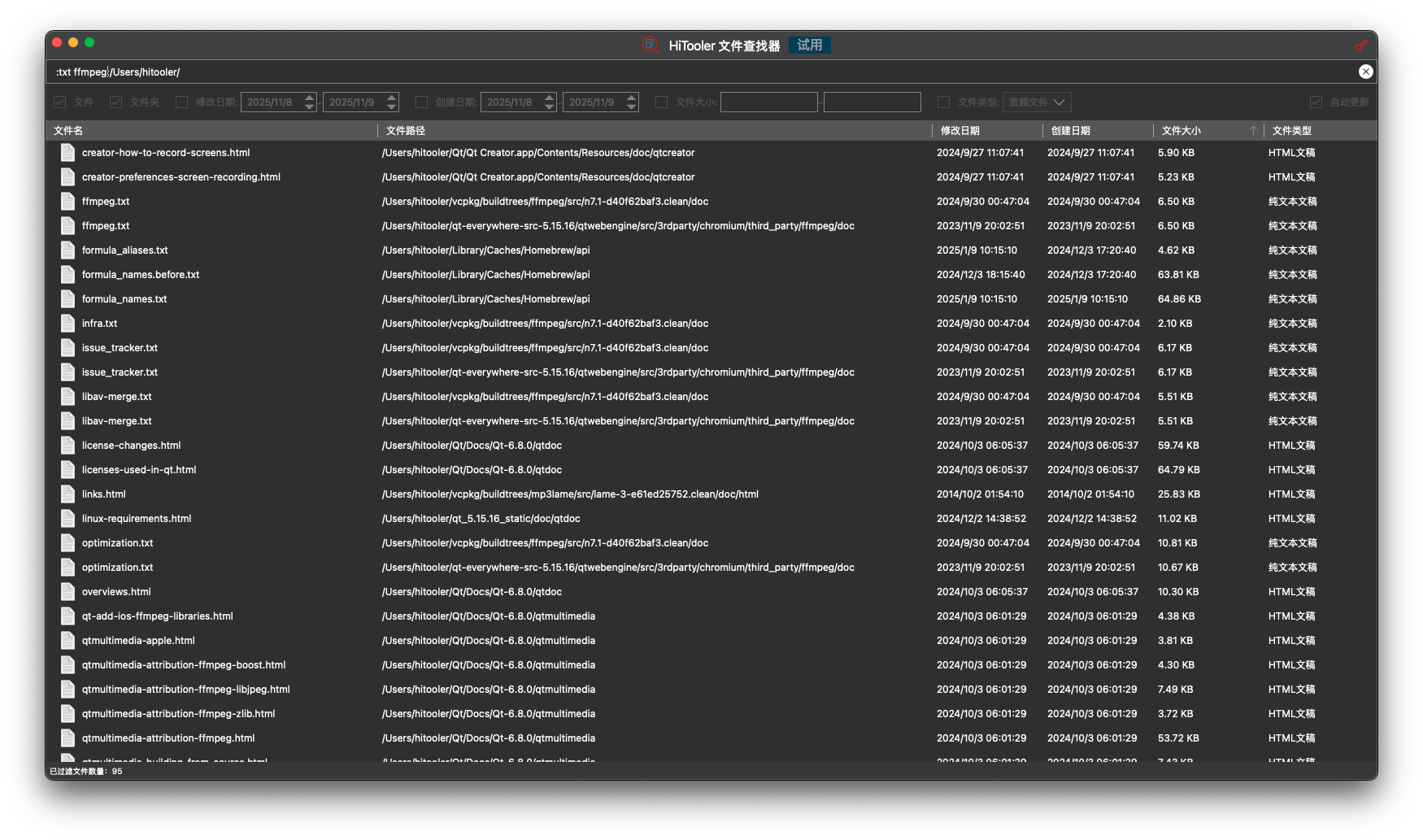
You can enter ':txt ffmpeg:/Users/hitooler/' in the search box and press 'Enter' to find files in the '/Users/hitooler/' directory whose content contains 'ffmpeg'. By default, it will search the content of all .txt, .html, and .epub files.
If you only want to search for the content of a specific file type, you can enter ':txt ffmpeg:/.html$' in the search box and press 'Enter' to find all .html files whose content contains 'ffmpeg'.
If your search keyword contains spaces, you need to enclose the keyword in double quotes '"'. For example, entering ':txt "updated to version":/Users/hitooler/.html$' in the search box will search for all .html files in the '/Users/hitooler/' directory whose content contains 'updated to version'.
Please note that searching by file content keywords usually only supports searching plain text files. Currently, the only supported non-plain text files are .epub files.
Supports viewing search history
You can press "CMD + Y" in the search box to view the search history. Use the up and down arrow keys (↑ and ↓) to select. After selecting, press "Enter" to replace the text in the search box with the search text from the search history. If the search text does not start with an English colon ":", the search will proceed directly. Otherwise, you need to press "Enter" again to execute the search.
Please note that only the search history initiated by entering text in the search box and pressing the "Enter" key will be recorded, and currently only the last 10 search records are saved.

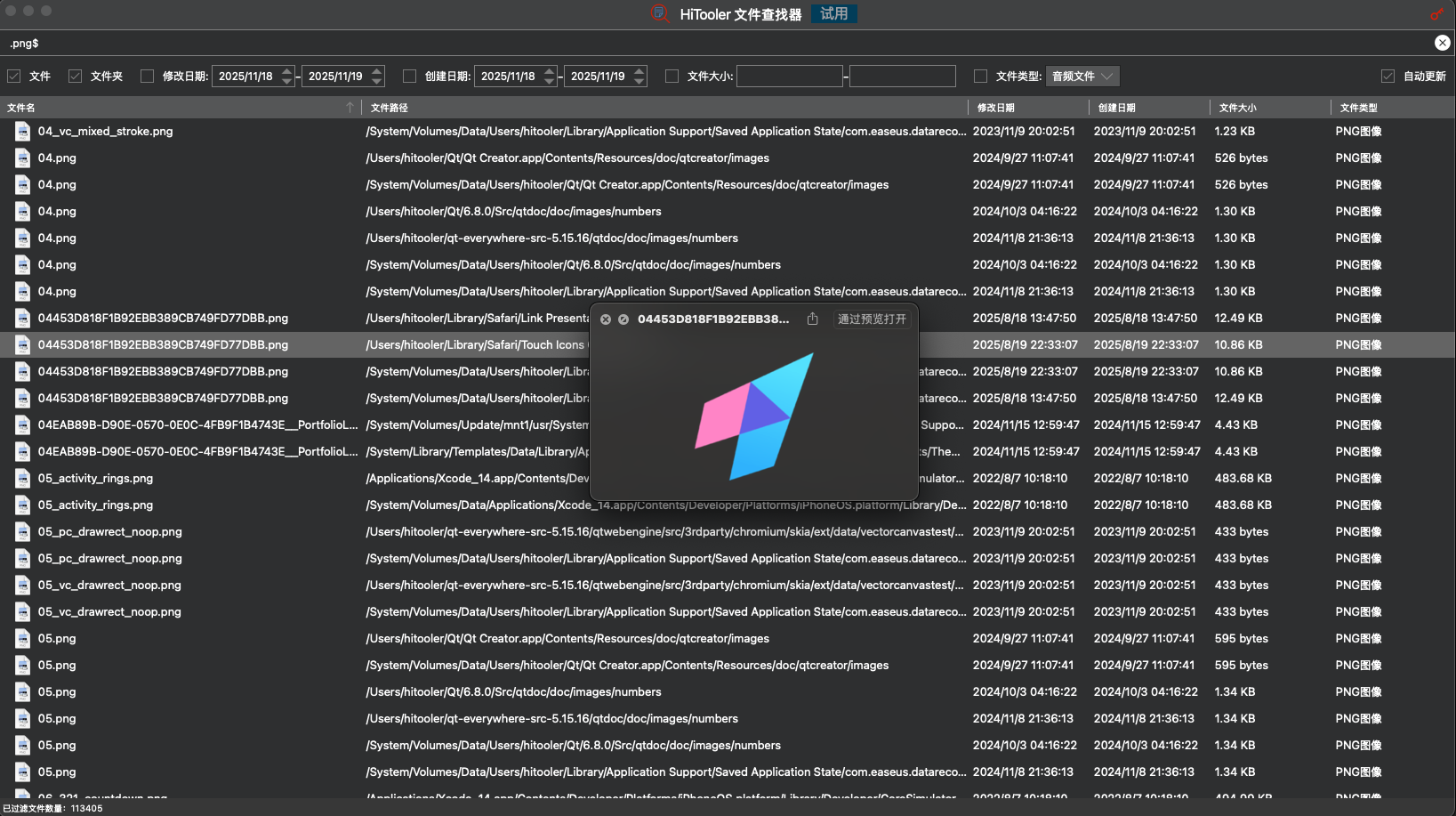
Supports file preview
When you select a file in the file list, you can press the space bar to preview the file, and press the space bar again to exit the file preview.
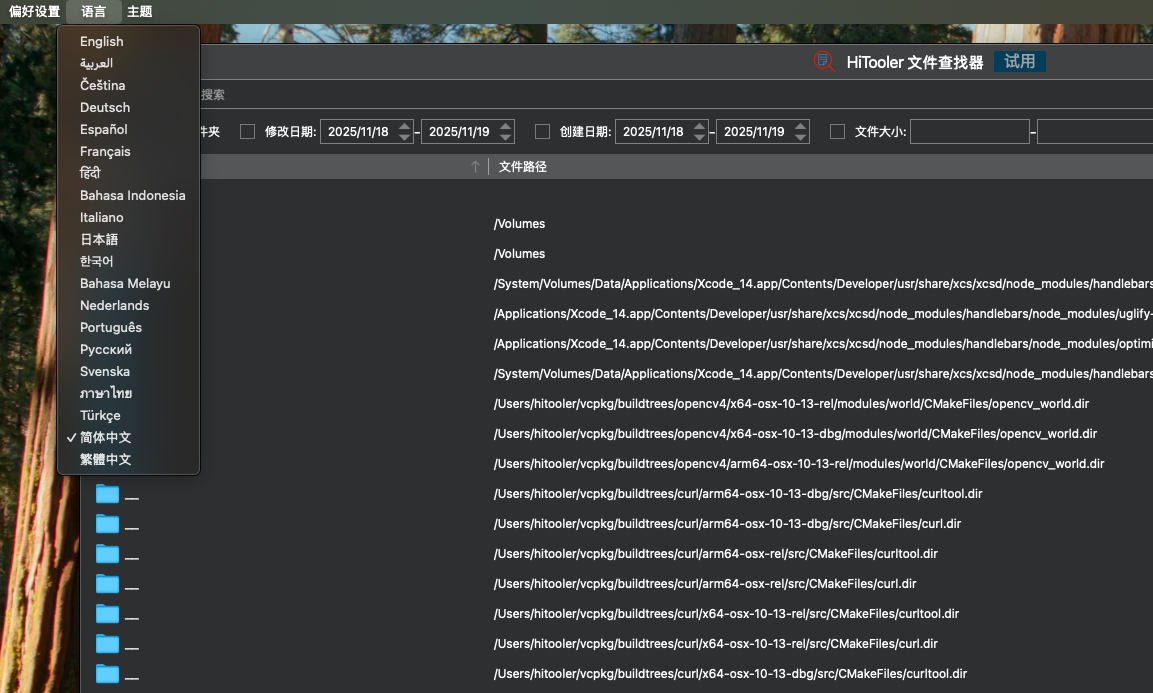
Supports multiple languages
You can select the language you want the software to display using the language bar in the top left menu. The default language displayed is the same as the macOS system.
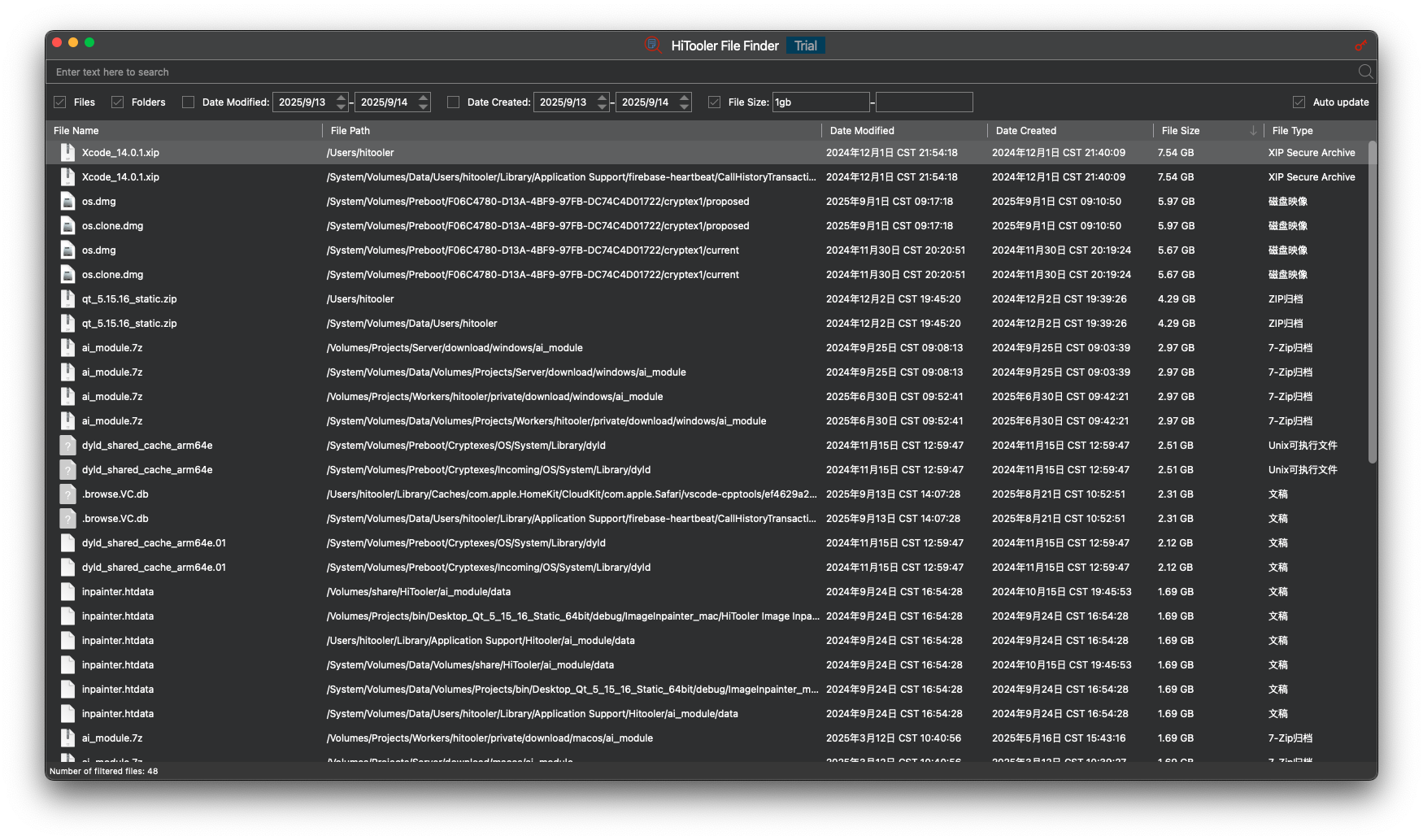
Monitor system file changes and update the list immediately
We monitor all file changes in the system in real time, including file renaming, deletion, creation, modification of content, etc., and update the file changes to the list in a timely manner.
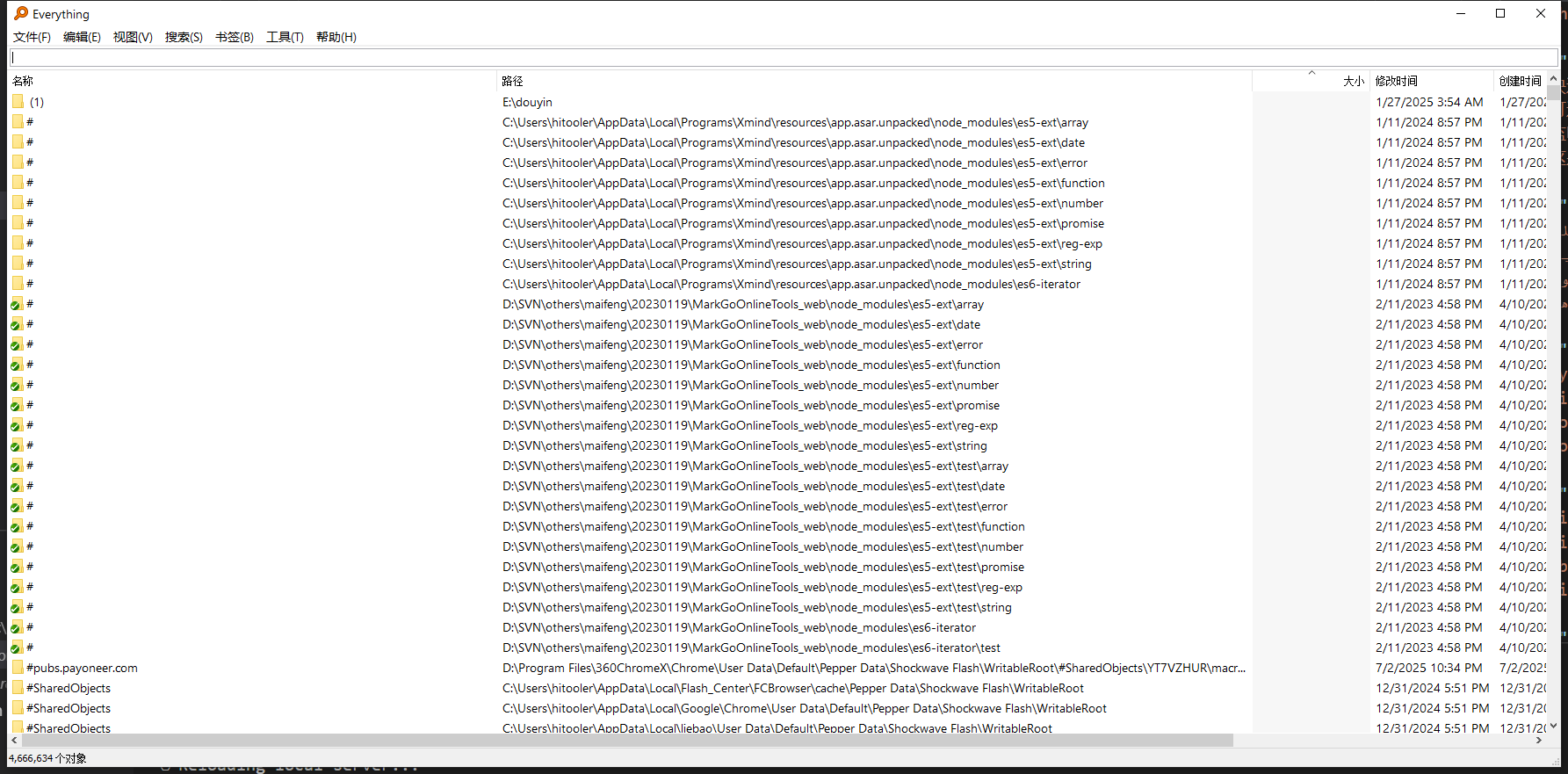
This is macOS's "Everything"
We try to make the performance and usage of the software consistent with the "Everything" software under Windows.
Of course, we'll also make adjustments based on actual needs to make the software more compatible with macOS.

Security Commitment
We promise: Our product will never modify, delete, or upload any of your files. You can authorize with confidence.
Our software will only access your file information in read-only mode and display it in a list, so you can view and search all the files in the system.
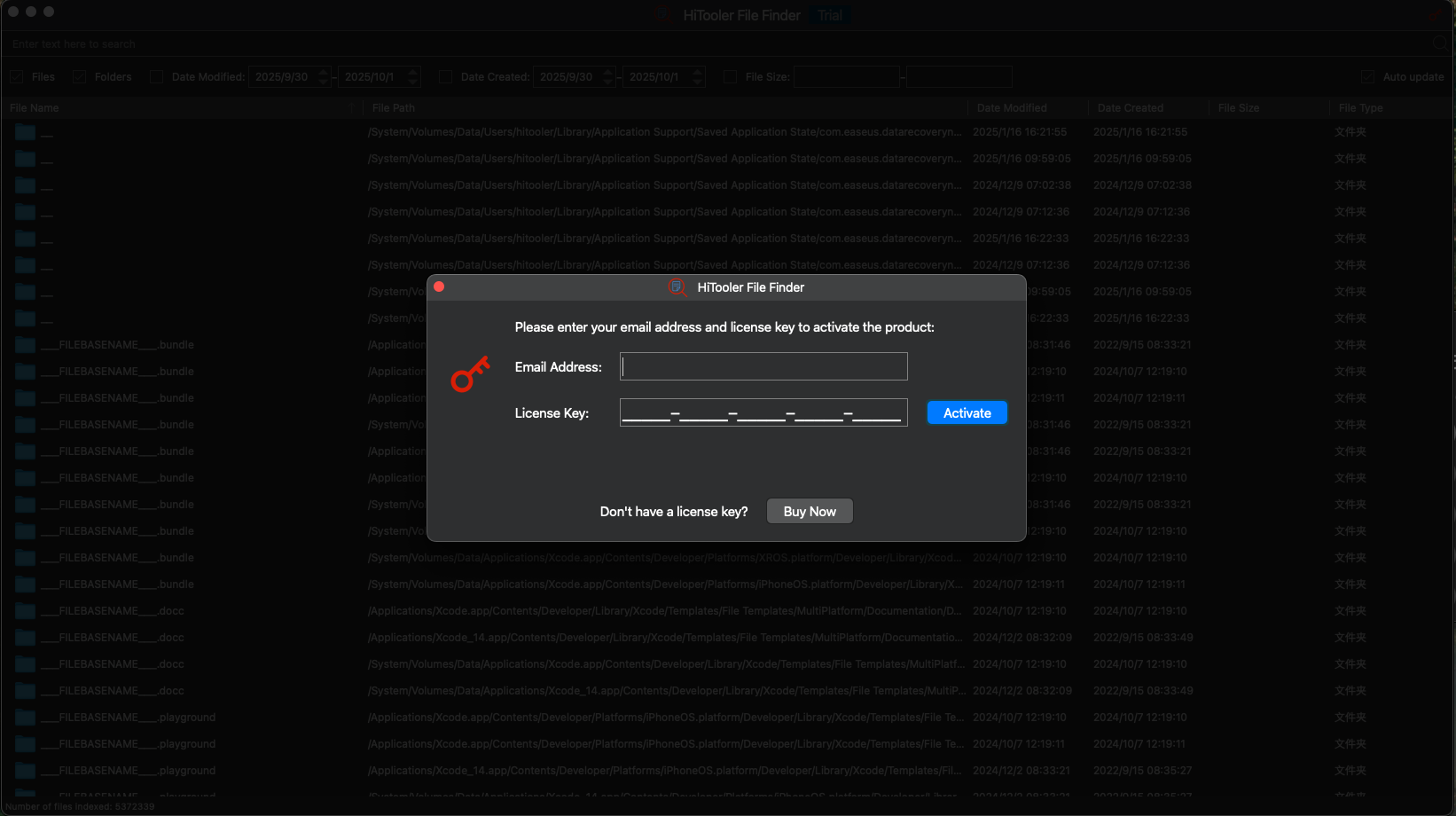
Supports trial
Our software supports a 24-hour trial, but there are certain limits on the number of searches and filters.
The trial time will only count when the software is open, which is the time you actually use the software.
However, after a certain period (usually a few days), the trial license will be revoked regardless of whether you have used up the trial time or number of uses.
FREE TRIAL
for macOS 10.13+
BUY NOW
Money Back Guarantee