





 Support Center
 Contact us
"HiTooler Video Inpainter" FAQs
How to remove the watermark in the video?
1. Download and install "HiTooler Video Inpainter", and open it after installation. If it is already installed, you can open it directly.
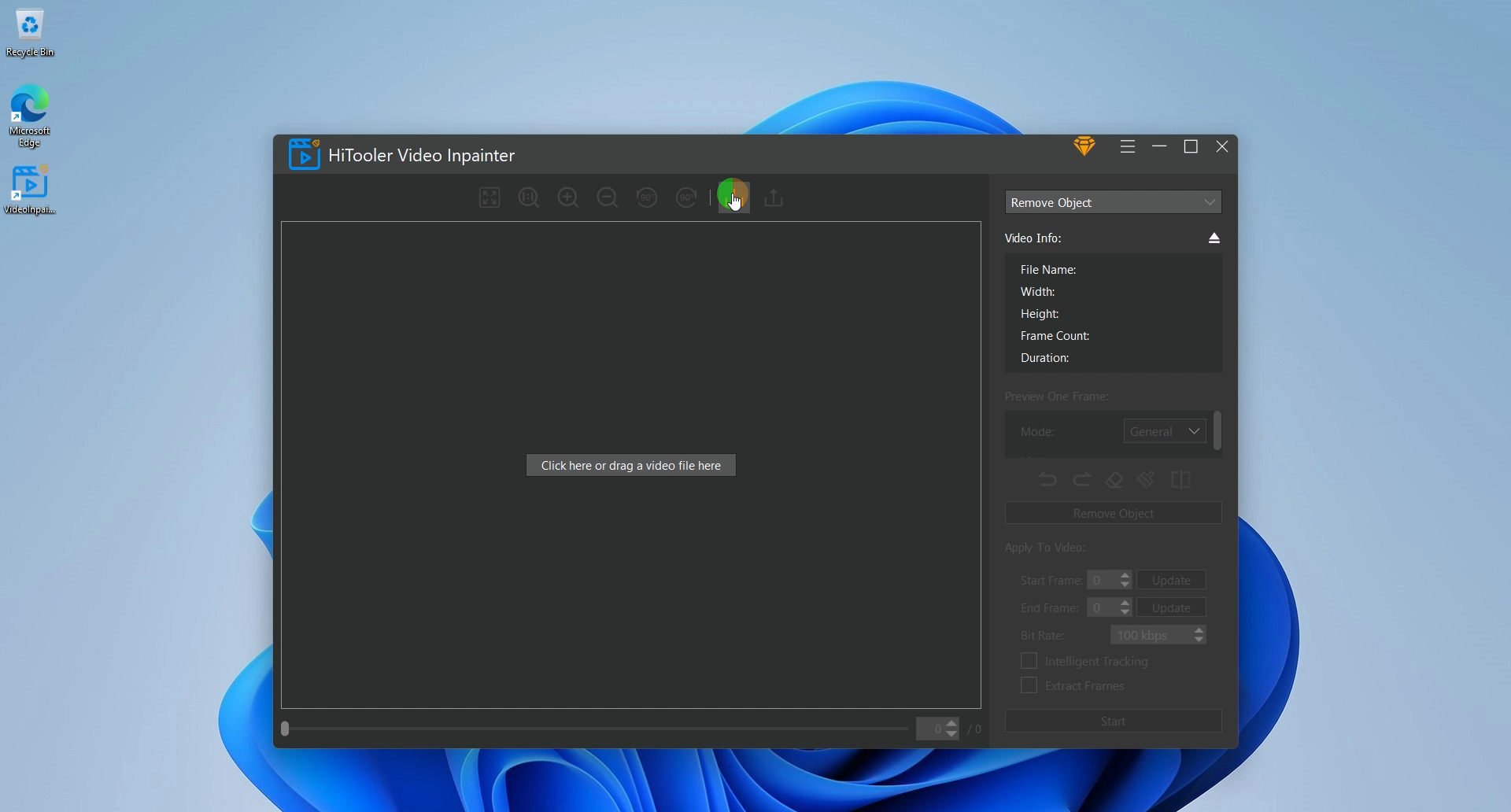
2. Click the Import button or drag a video file to the video display area to open a video.
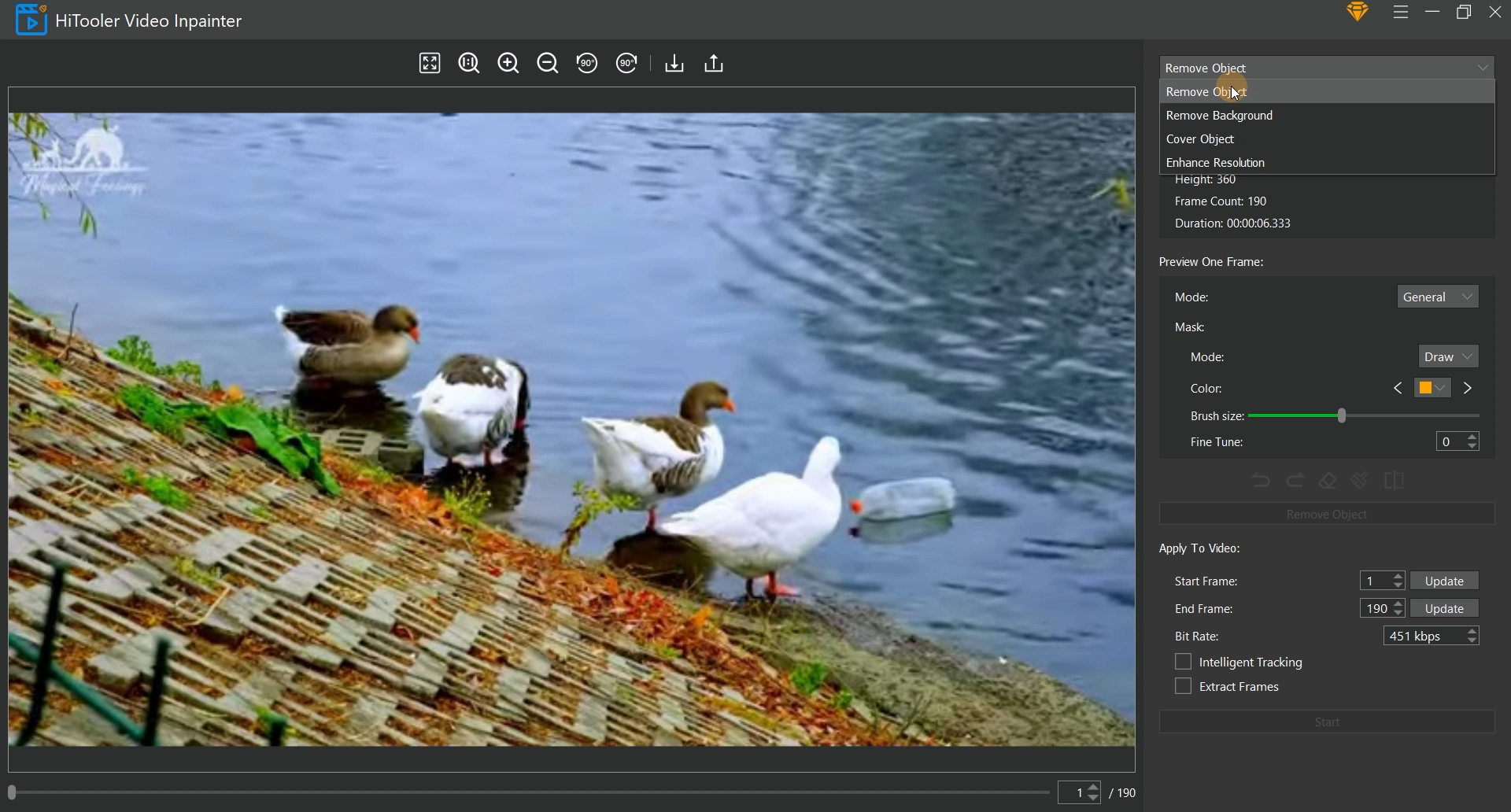
3. Click the drop-down box at the top of the right panel and select the mode as "Remove Object".
4. There is a scroll bar and an input box below the video display area on the left. You can modify which frame of the current video to display by dragging the scroll bar and entering the frame number in the input box.
5. Select the corresponding mode in the "Preview One Frame" area, where the "General" mode is for videos with a relatively simple background, and the "Advanced" mode is for videos with moving and more complex backgrounds.
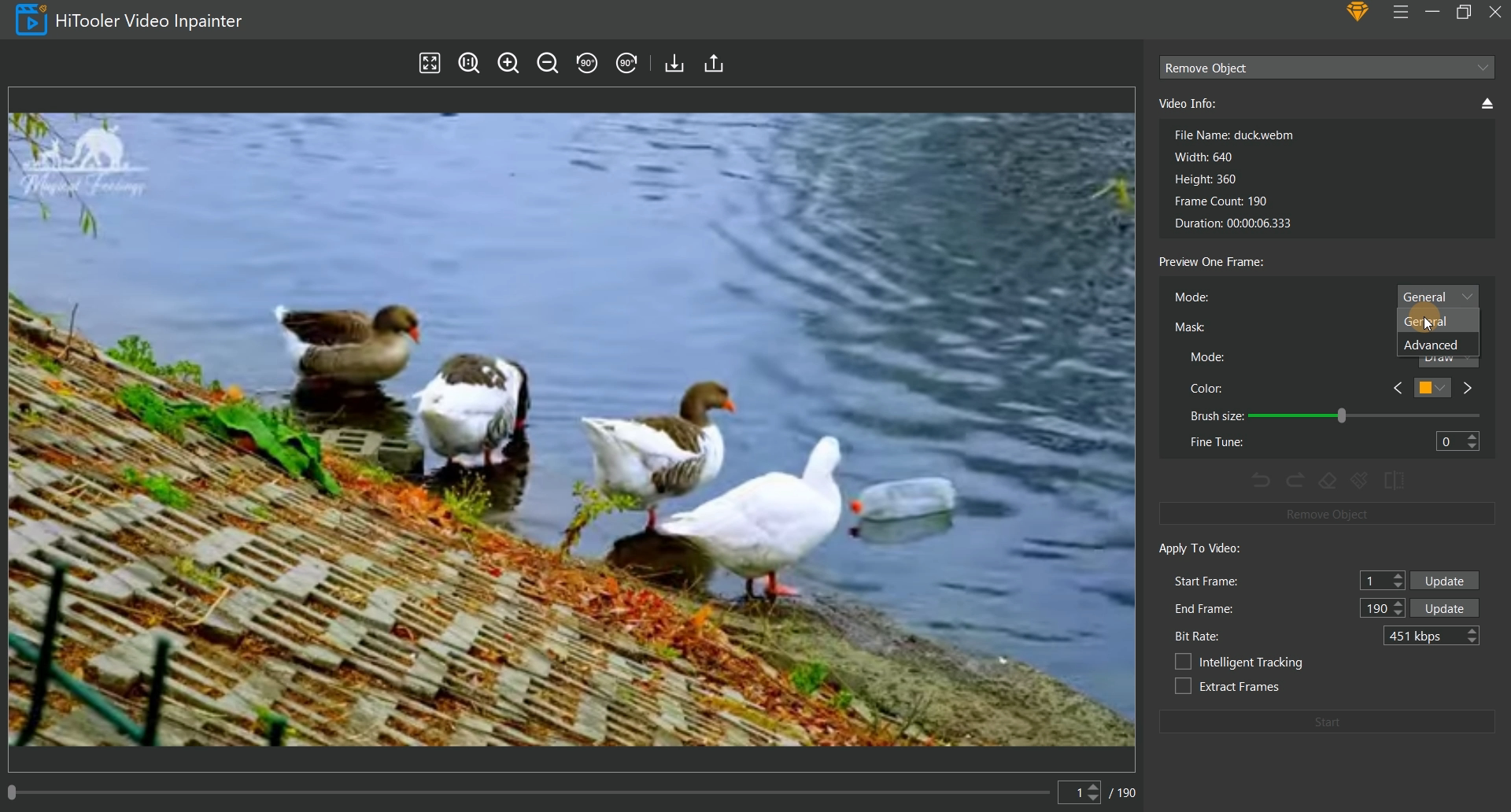
6. If the "Mask" mode is selected as the "Select" mode, you can quickly select the watermark area by moving the mouse in the video display area on the left, and click the left mouse button after selecting. If the "Mask" mode is selected as the "Draw" mode, you can draw the watermark area in the video display area on the left by dragging the left mouse button.
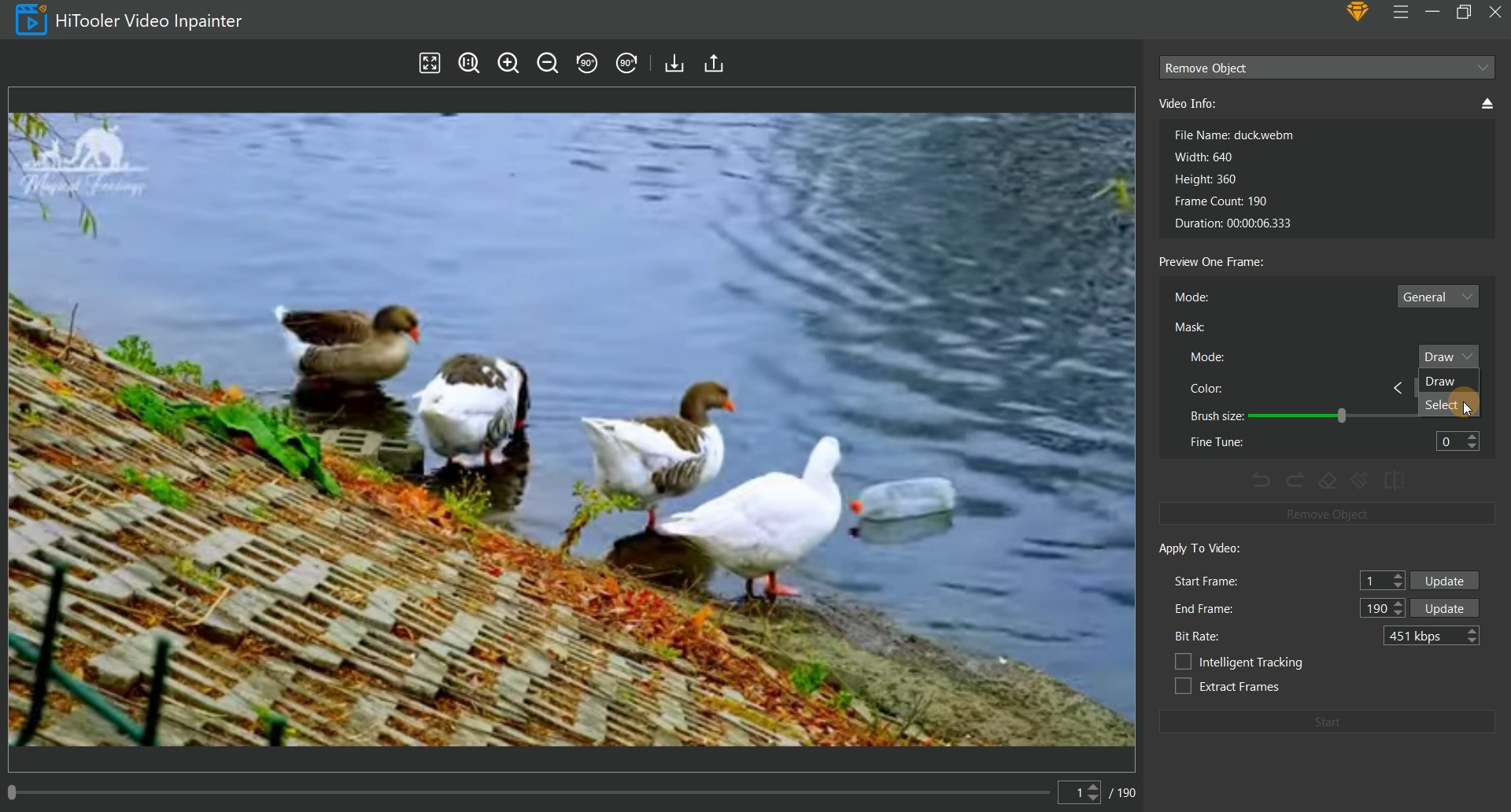
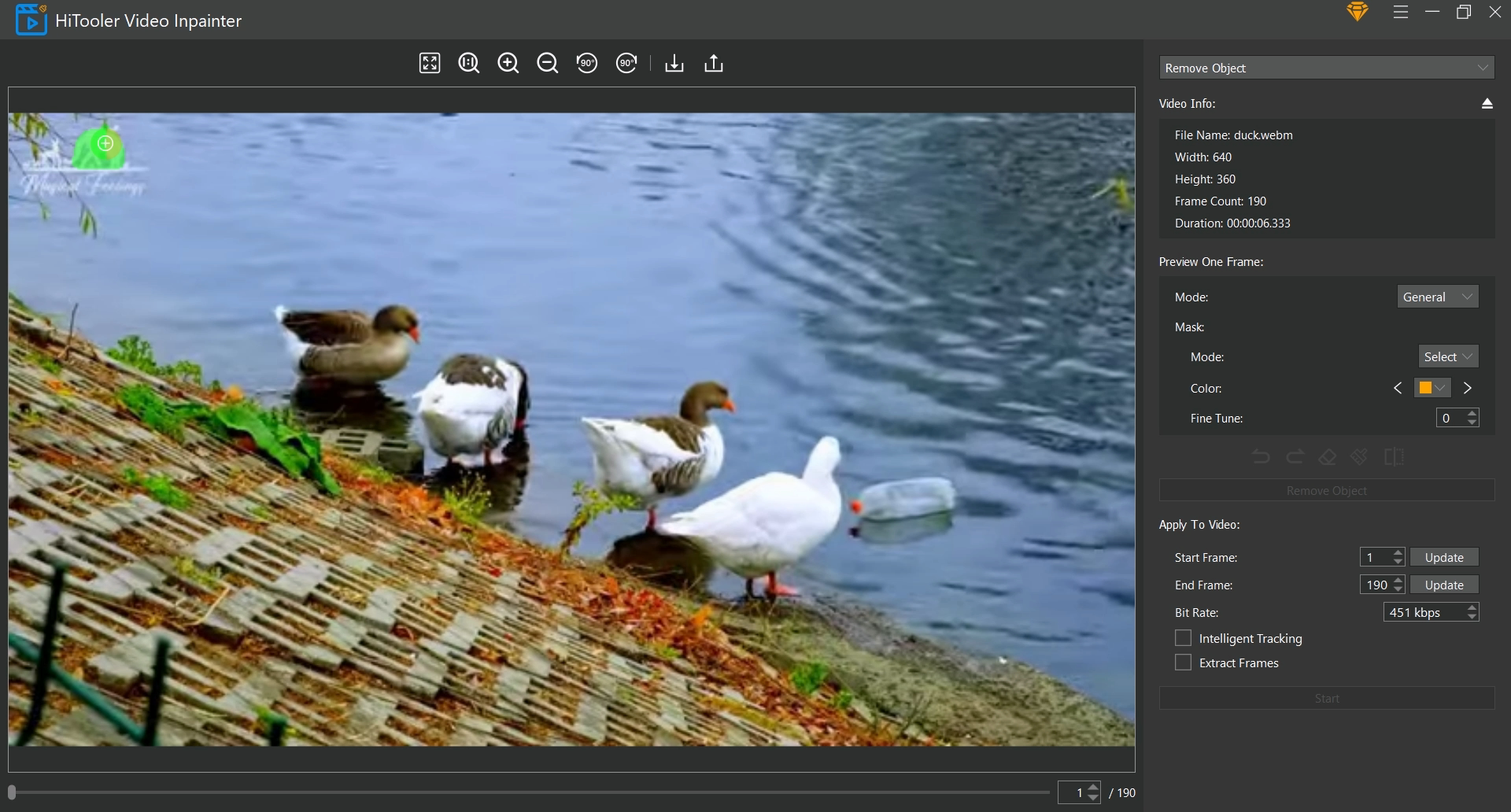
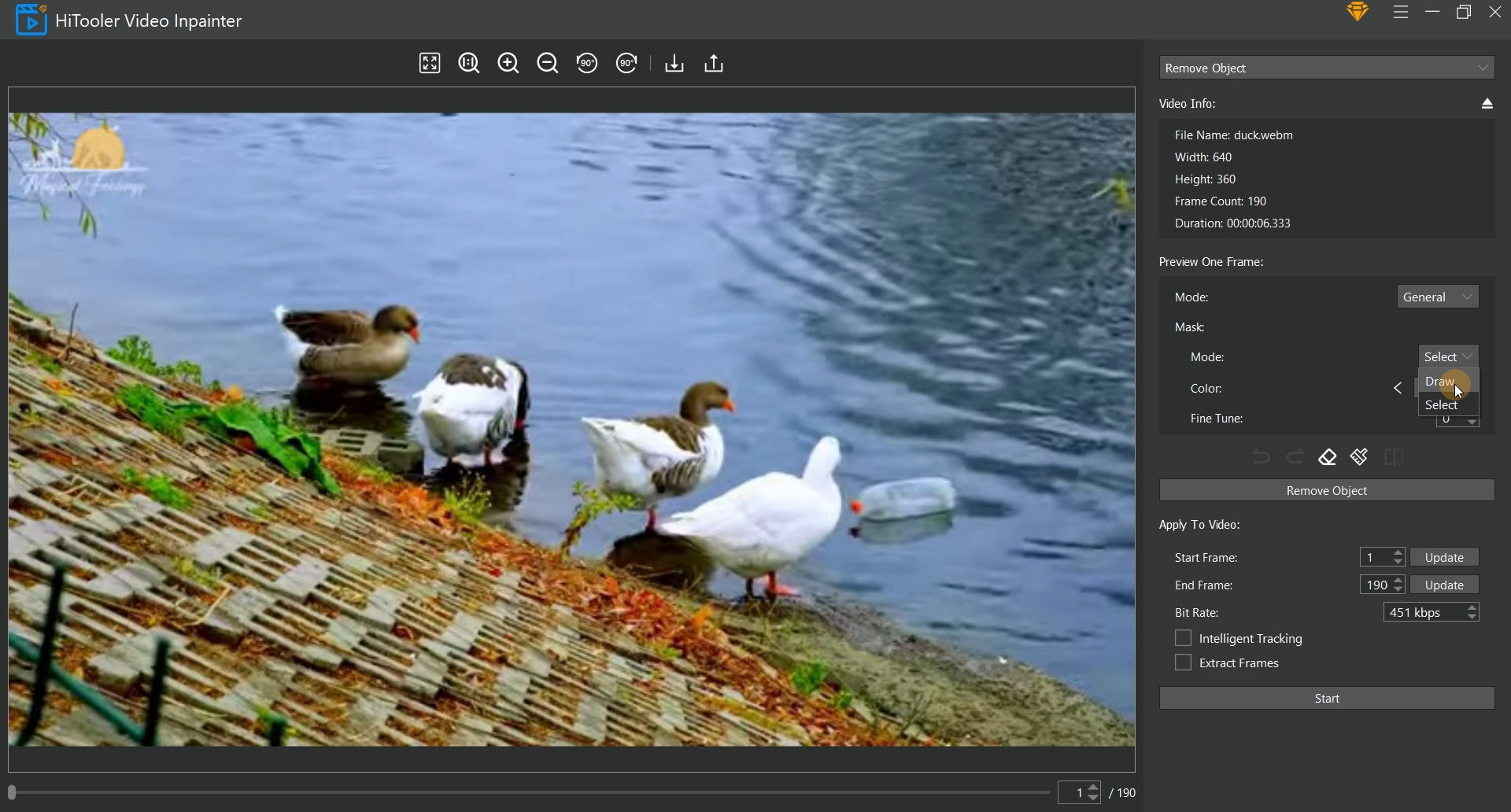
7. If the mask selected by moving the mouse does not cover the entire watermark to be removed, you can select the "Mask" mode to "Draw" to manually supplement the mask. If the mask selected by moving the mouse covers the area outside the watermark, you can click the "Eraser" icon to enter the Delete mode and manually delete the unwanted area. Click the "Eraser" icon again to exit the Delete mode. Note that if you are in Delete mode and the "Mask" mode is in "Select" mode, the mask of the area you selected will be deleted.
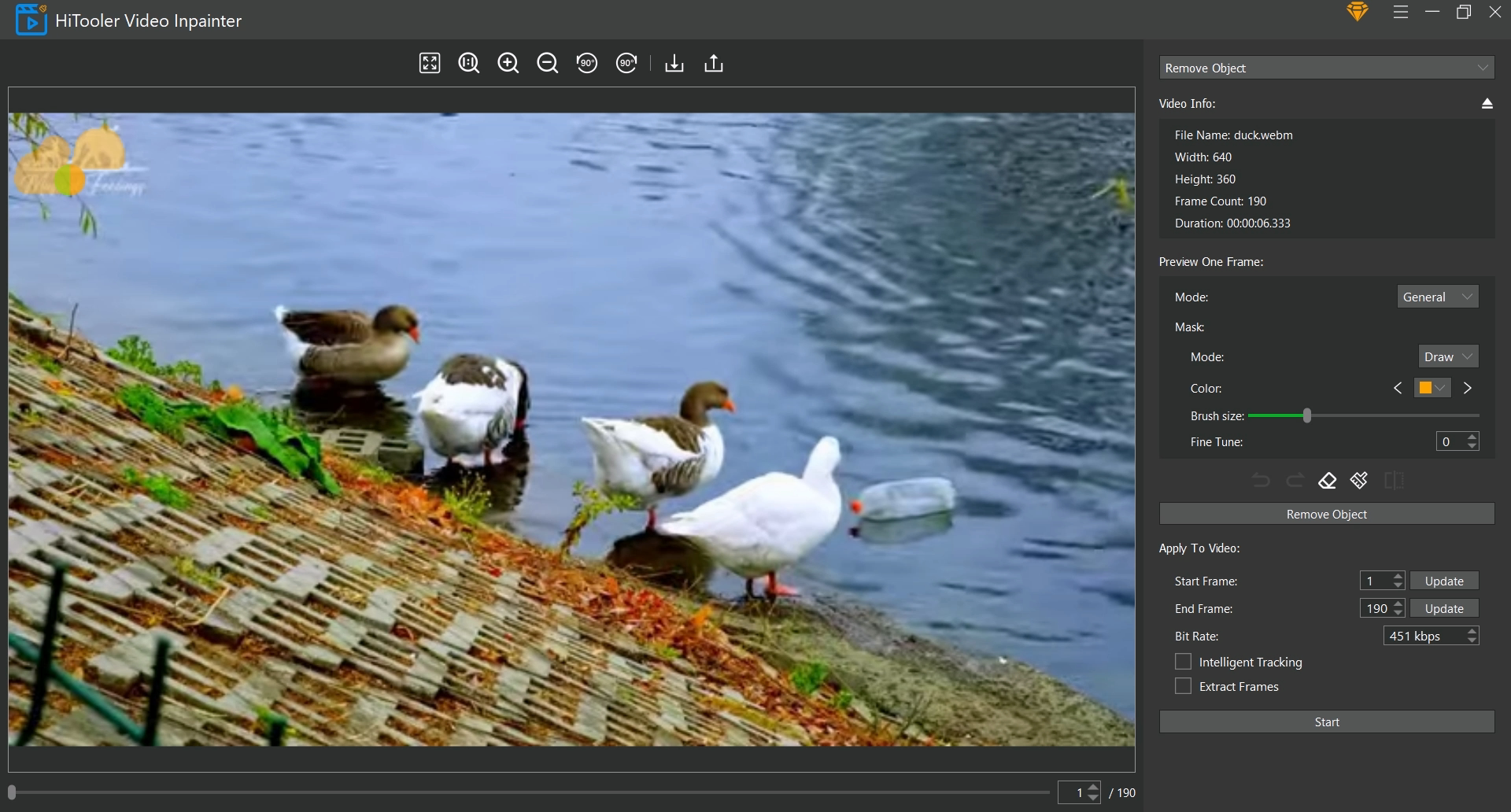
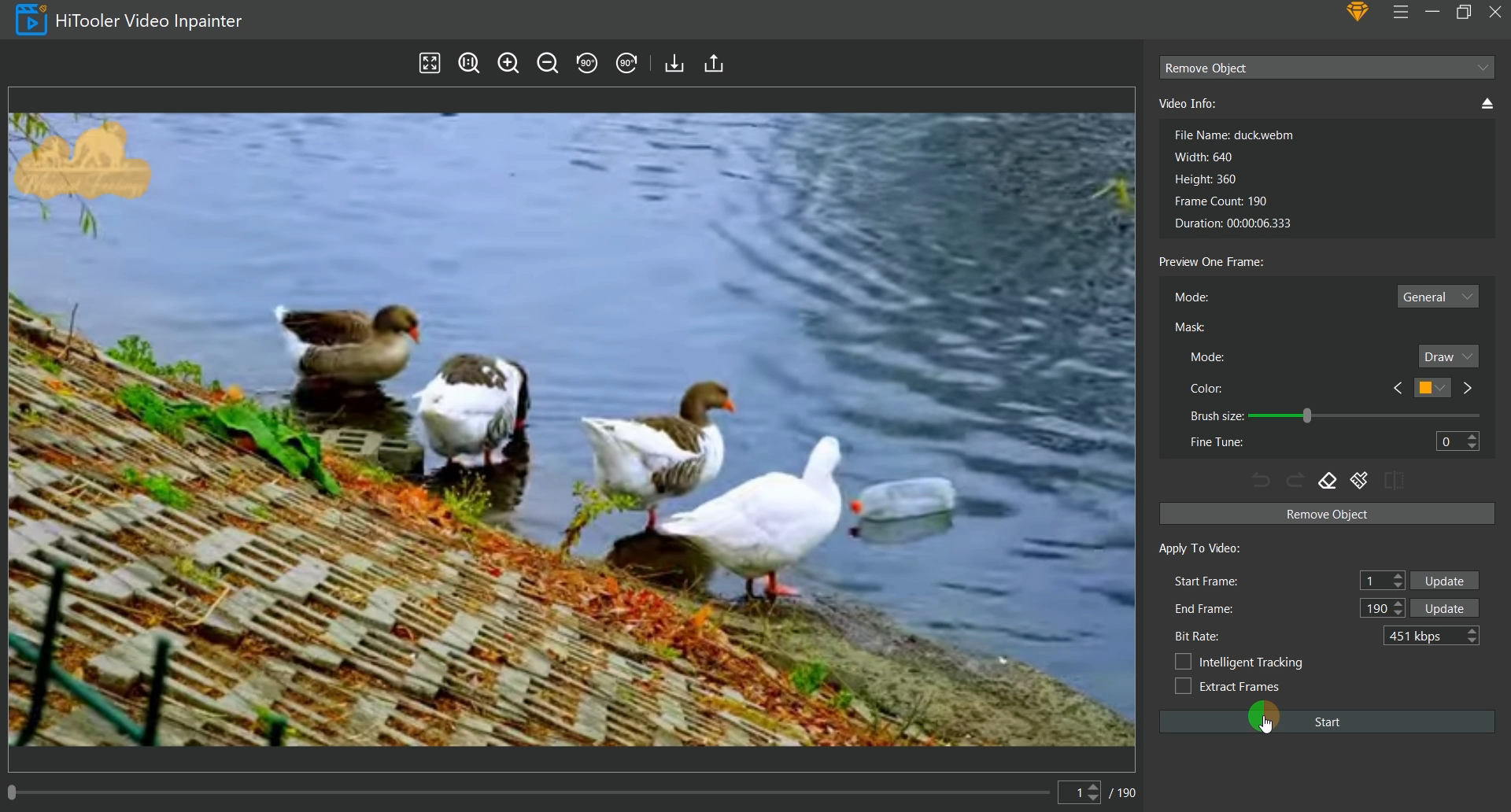
8. Set the start and end frames you want to apply to the video in the "Apply to Video" area. Note that the start frame should be the frame where you currently set the mask.
9. If you want to extract the video from the start frame to the end frame, check the "Extract Frames" checkbox. The generated video will only have the video from the start frame to the end frame.
10. If the watermark to be removed is moving in the video, please check the "Intelligent Tracking" checkbox. The software will automatically track the movement of the watermark and remove the watermark when it is tracked, and will not do anything if it is not tracked.
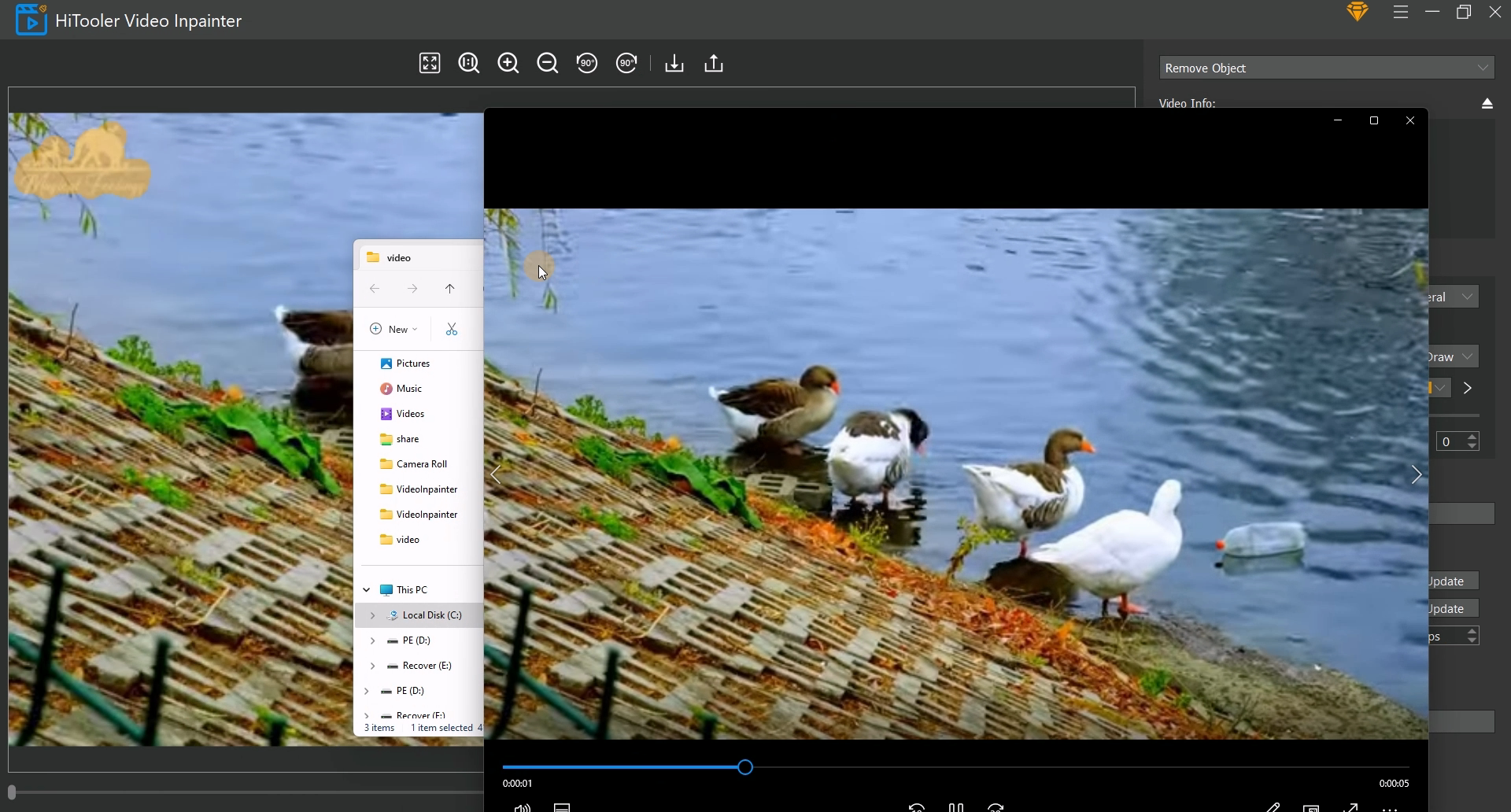
11. Finally, click the "Start" button and wait for the watermark removal to be completed.