Important Notice: Since the original domain (hitooler.com) is no longer active, it has been updated to the new domain (myhitooler.com). All software needs to be updated to the latest version to continue using it.
1. Download and install "HiTooler File Finder", and open it after installation. If it is already installed, you can open it directly.
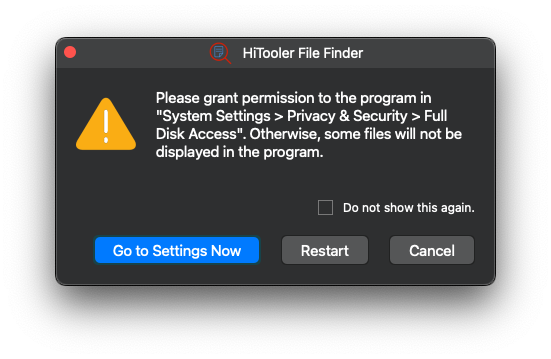
2. Grant the software full access to your disk.
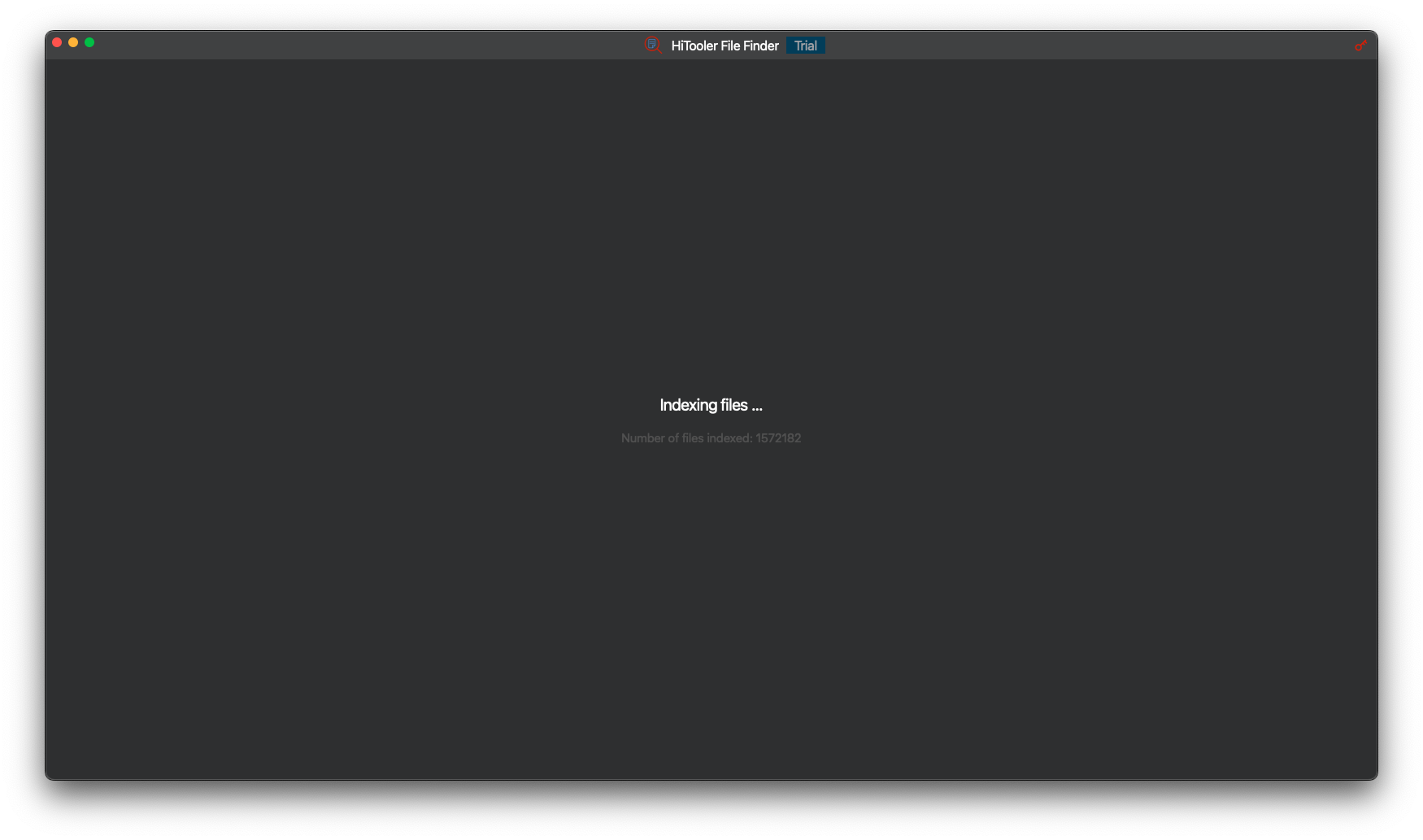
3. Wait for the software to finish indexing all files on your system.
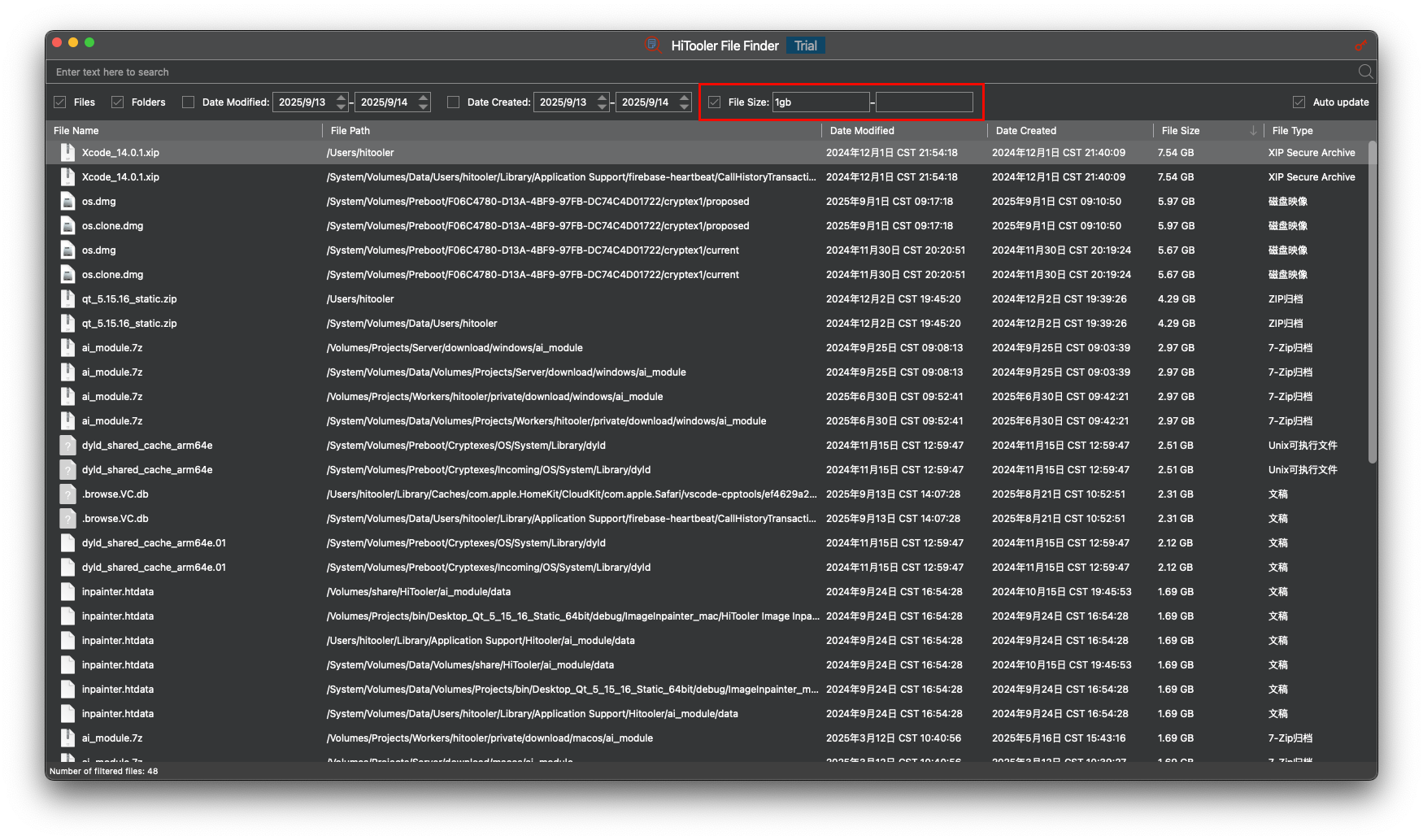
4. In the list, click the header of the File Size column to sort the list by file size in descending order. Large files will appear at the top of the list.
5. You can also enter a file size range in the File Size filter to filter for all files that meet the specified size.
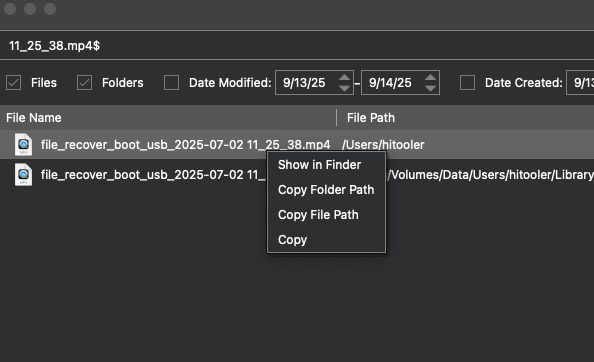
6. Right-click a file in the list to perform the desired action in the context menu that appears.








 Support Center
 Contact us