





 Support Center
 Contact us
"HiTooler File Finder" FAQs
How to set 'Full Disk Access' permission?
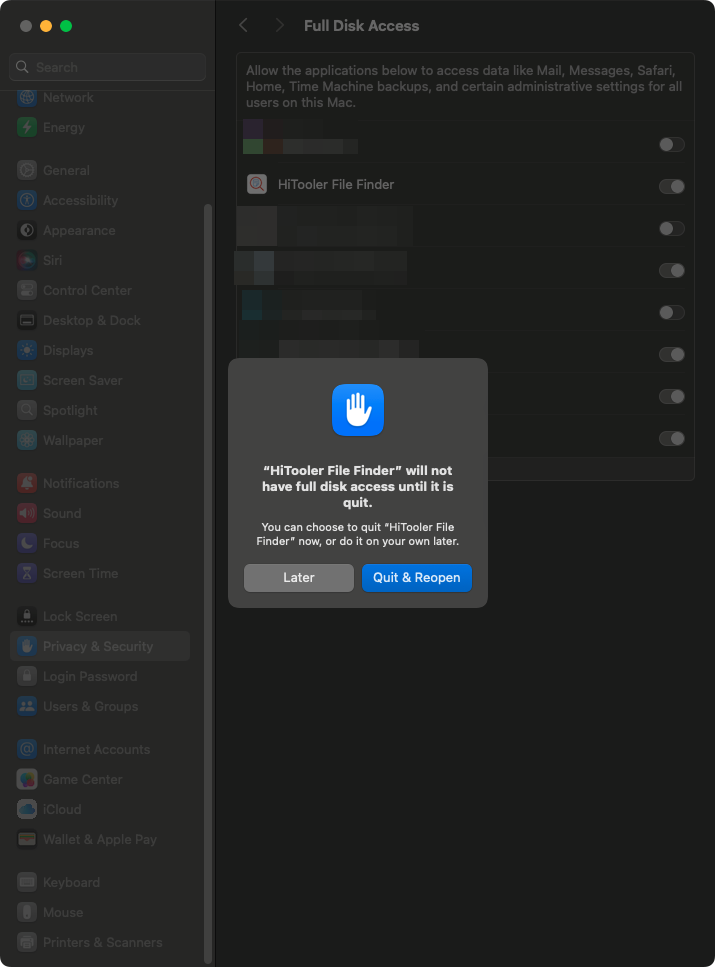
1. When you open our software, if our software does not have "Full Disk Access" permission, a dialog box will pop up. Click "Go to 'Settings' Now" at the bottom of the dialog box to jump to the "Full Disk Access" permission settings page in the system settings.
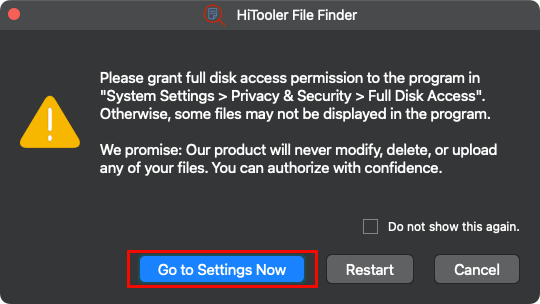
2. You can also access the "Full Disk Access" permission settings page through "System Settings> Privacy and Security> Full Disk Access".

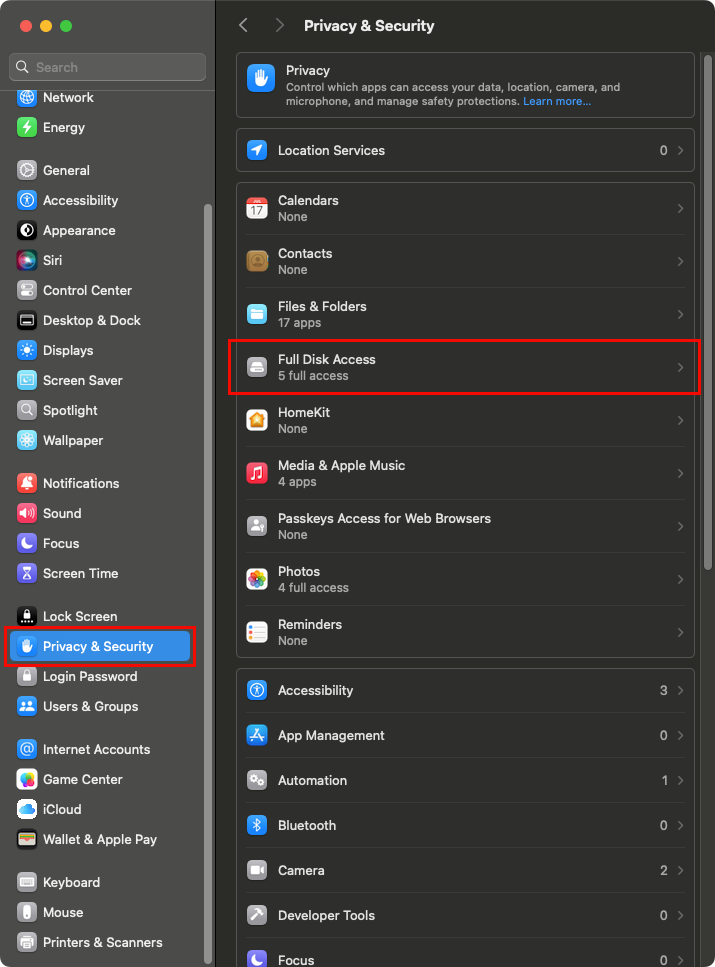

3. If our software "HiTooler File Finder" doesn't appear in the list, you need to click the "+" button below, enter your system login password, and then select our application "HiTooler File Finder" in the subsequent file selection box to open it.


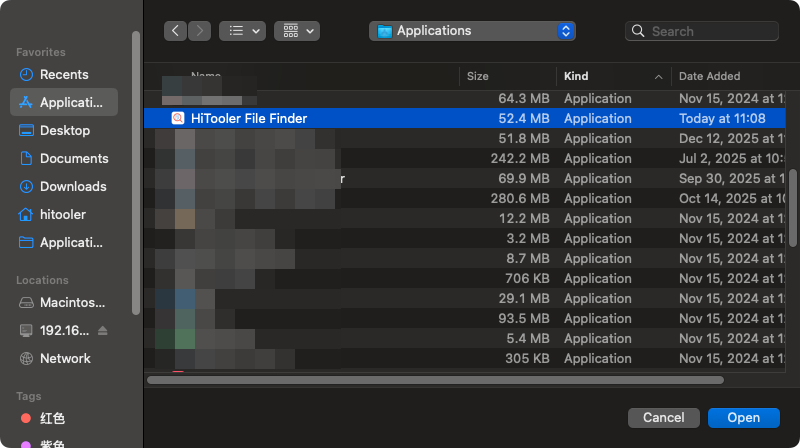
4. Ensure that the switch to the right of "HiTooler File Finder" in the list is turned on. If the system requires you to restart the application, simply restart it as instructed.