





 Support Center
 Contact us
"HiTooler File Finder" FAQs
How to find all duplicate files on macOS?
1. Download and install "HiTooler File Finder", and open it after installation. If it is already installed, you can open it directly.
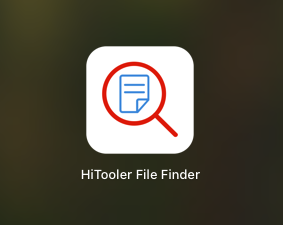
2. Grant the software full access to your disk.
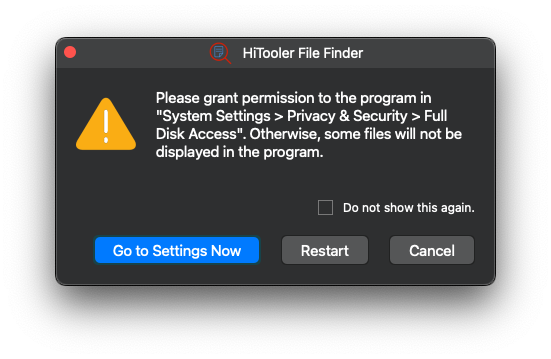
3. Wait for the software to finish indexing all files on your system.
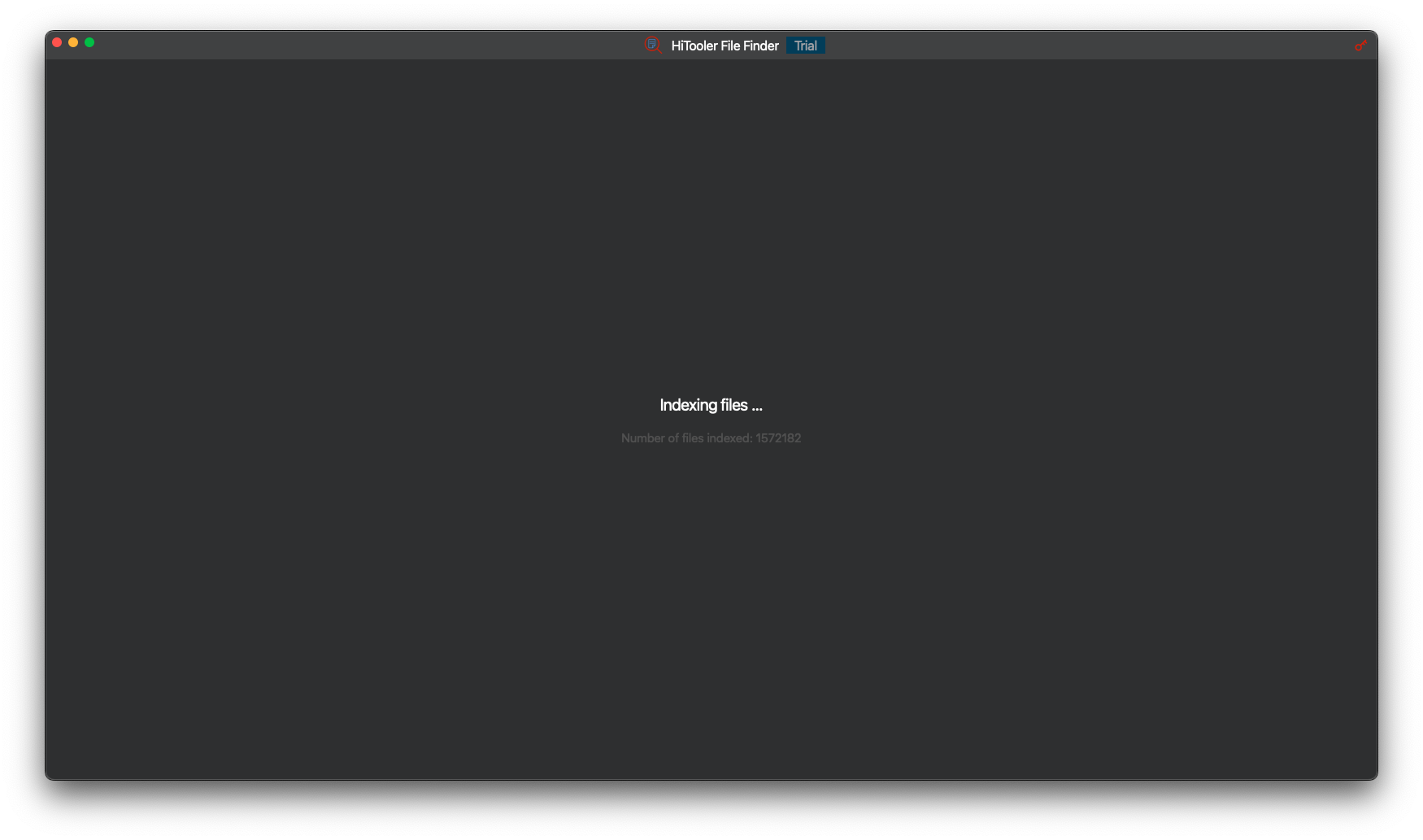
4. In the search input box at the top, type ":dup:/" and press "Enter", then wait for the software to complete the search for duplicate files. Note that the colon in ":dup:/" is the English colon ":". If you only want to search for duplicate files in a specific directory (for example, "/Users/hitooler"), you can enter ":dup:/Users/hitooler/". Make sure to include a trailing slash "/".
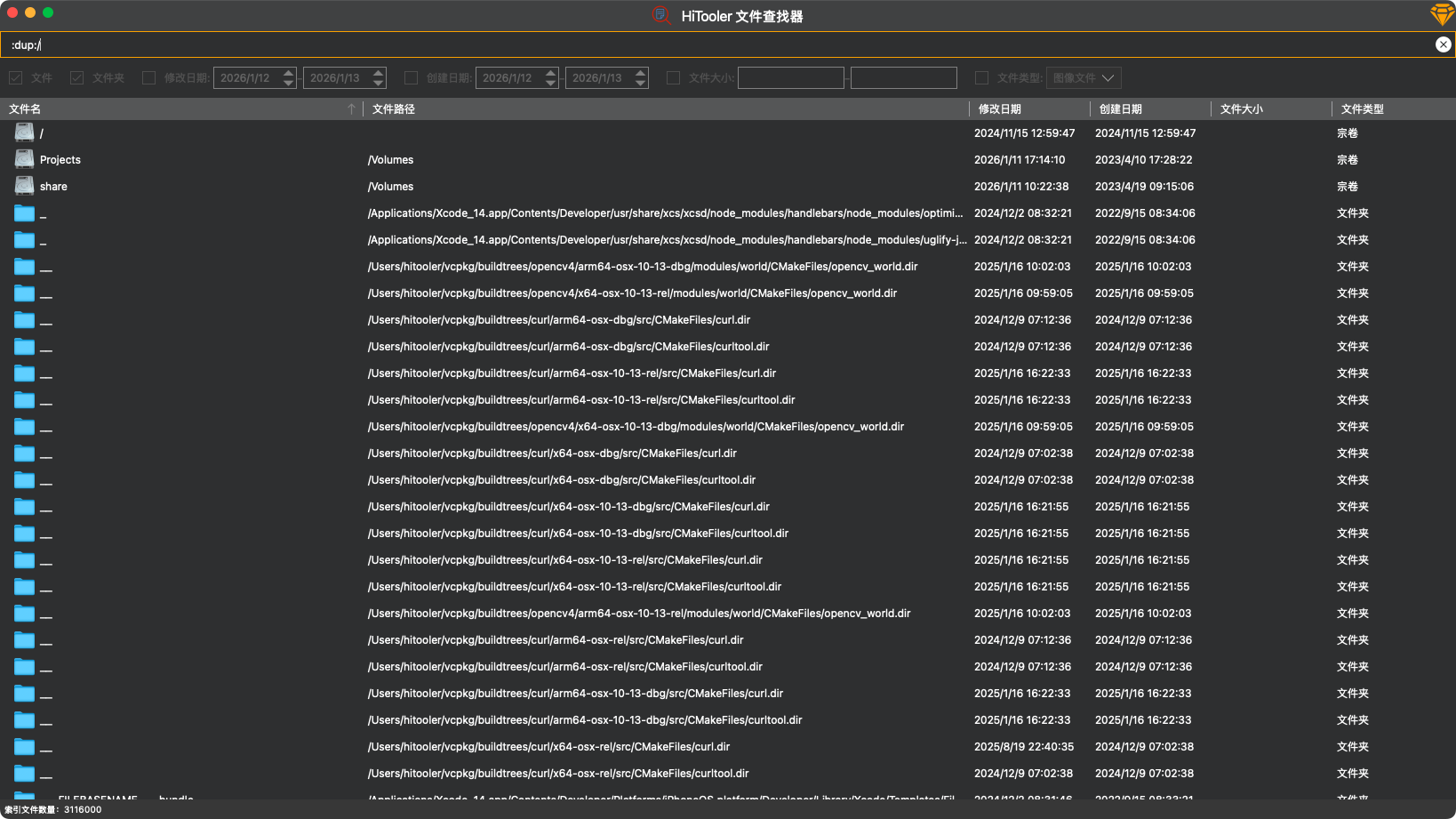
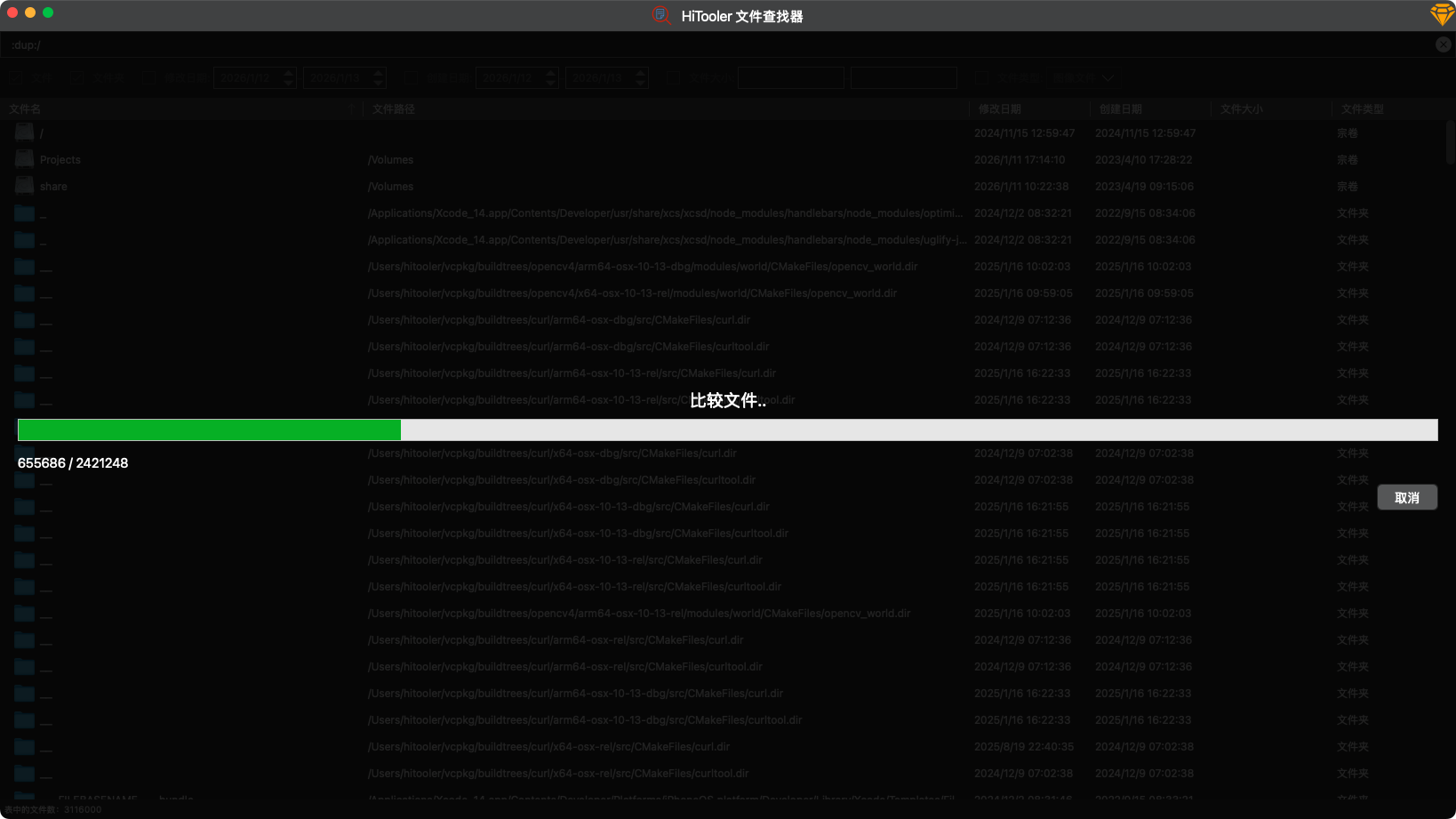
5. After the search is complete, you will see all the duplicate files listed. Note that only files with the same name and the same content are considered duplicates. Duplicate files are grouped together in the same color (yellow or green), with smaller files listed first.