





 Support Center
 Contact us
"HiTooler Image Inpainter" FAQs
How to quickly blur faces on images?
1. Download and install "HiTooler Image Inpainter", and open it after installation. If it is already installed, you can open it directly.
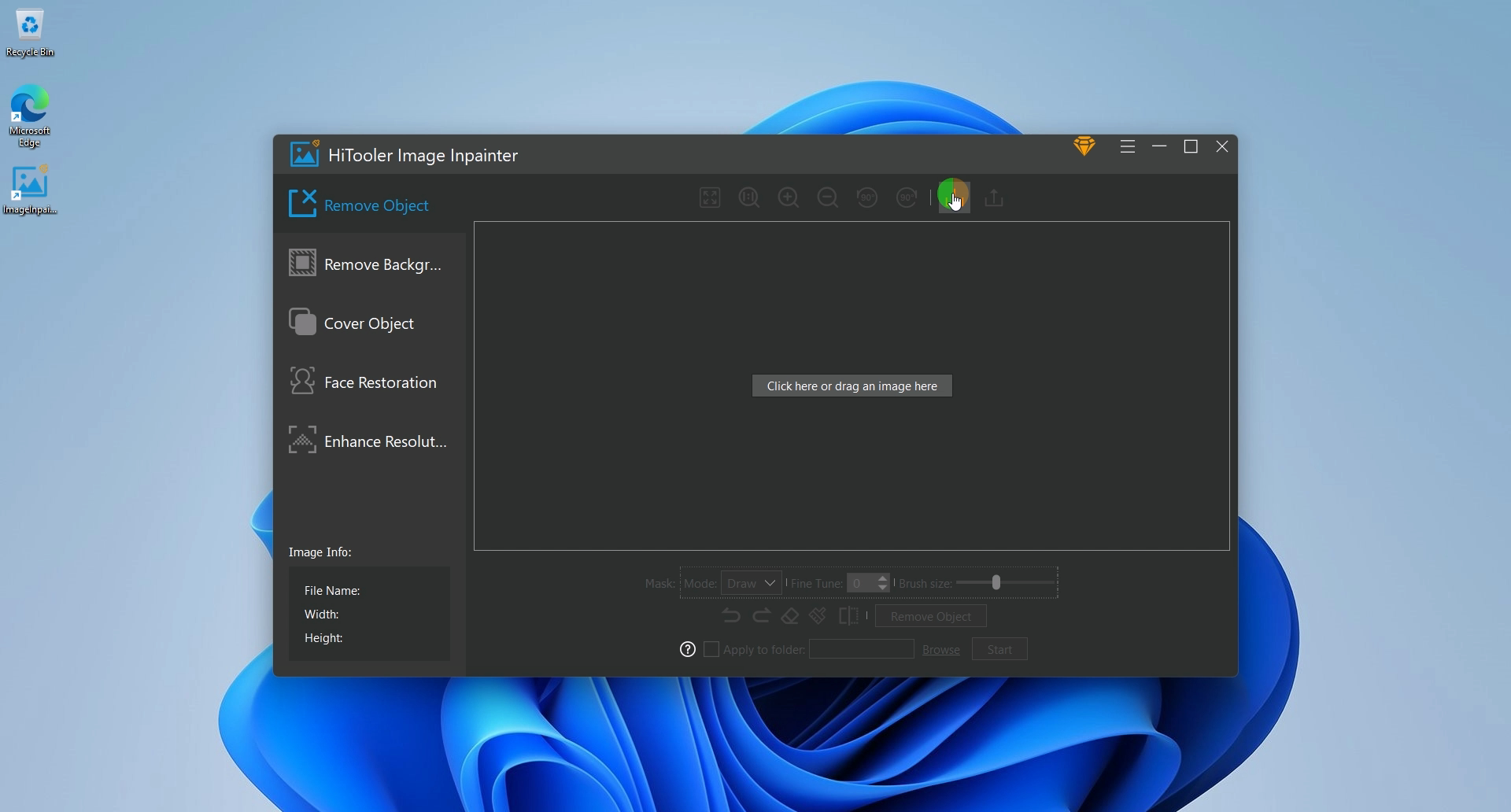
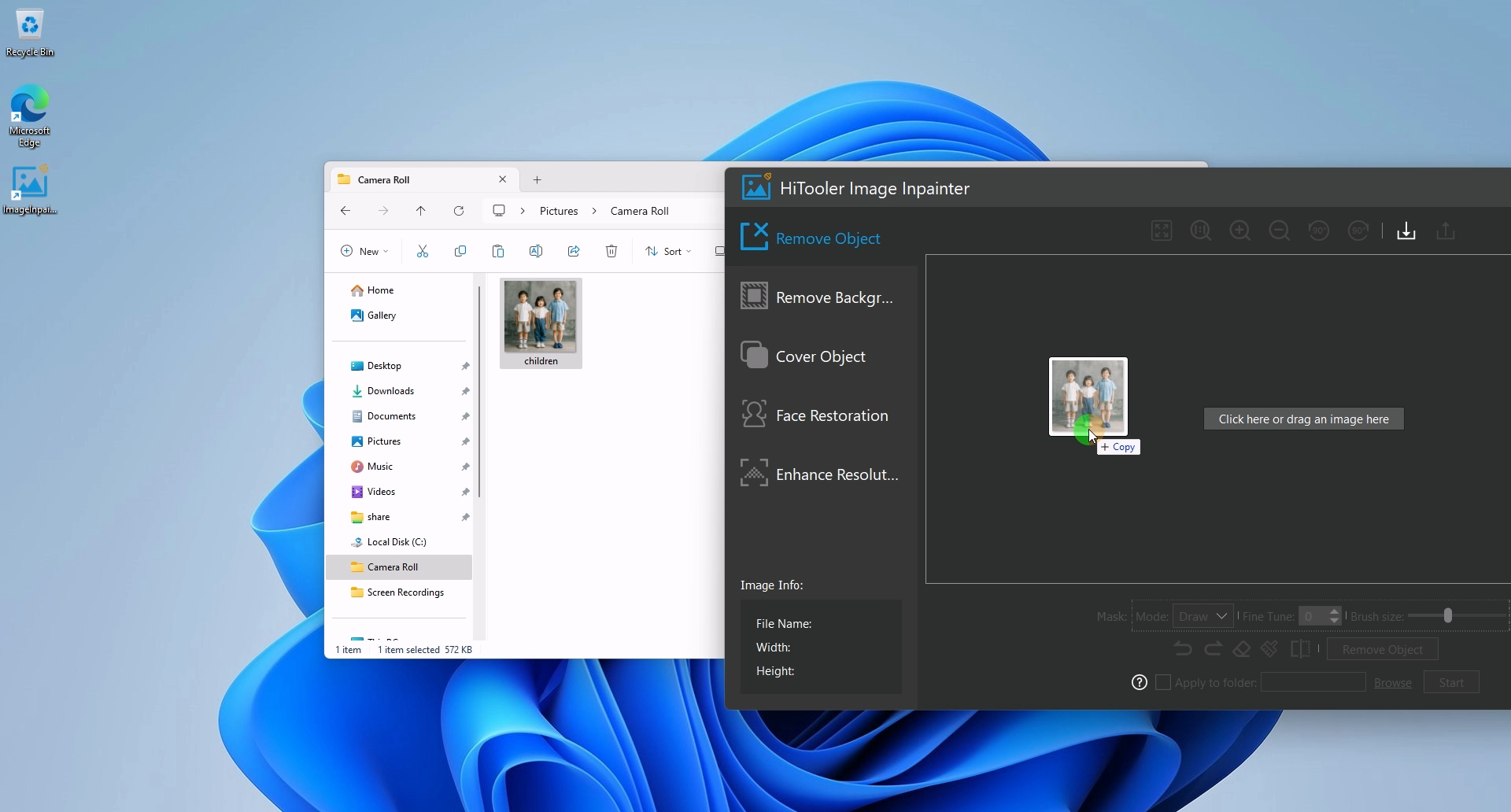
2. Click the Import button or drag a photo to the picture display area to open a photo.
3. Click the "Cover Object" panel on the left side of "HiTooler Image Inpainter".
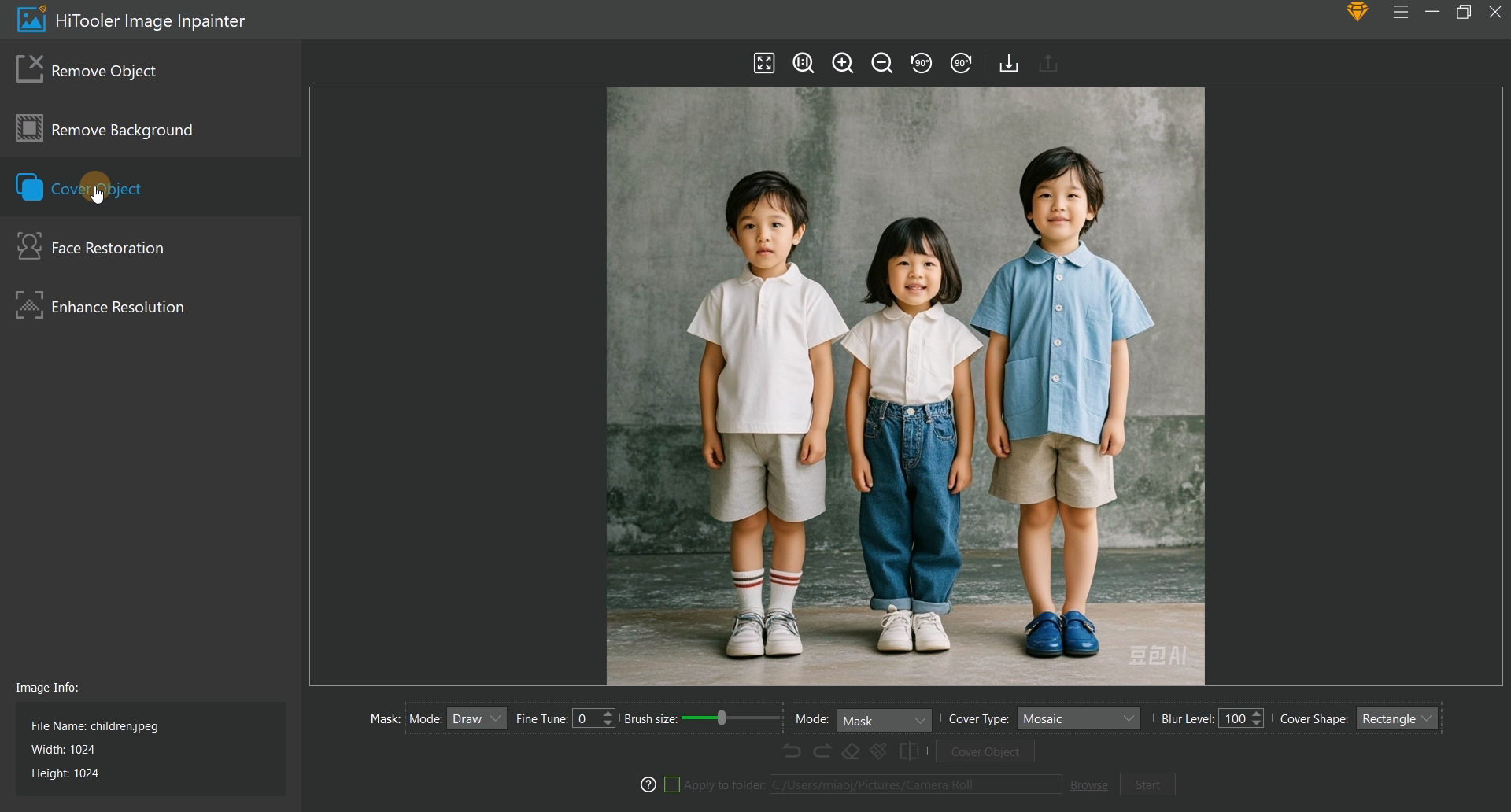
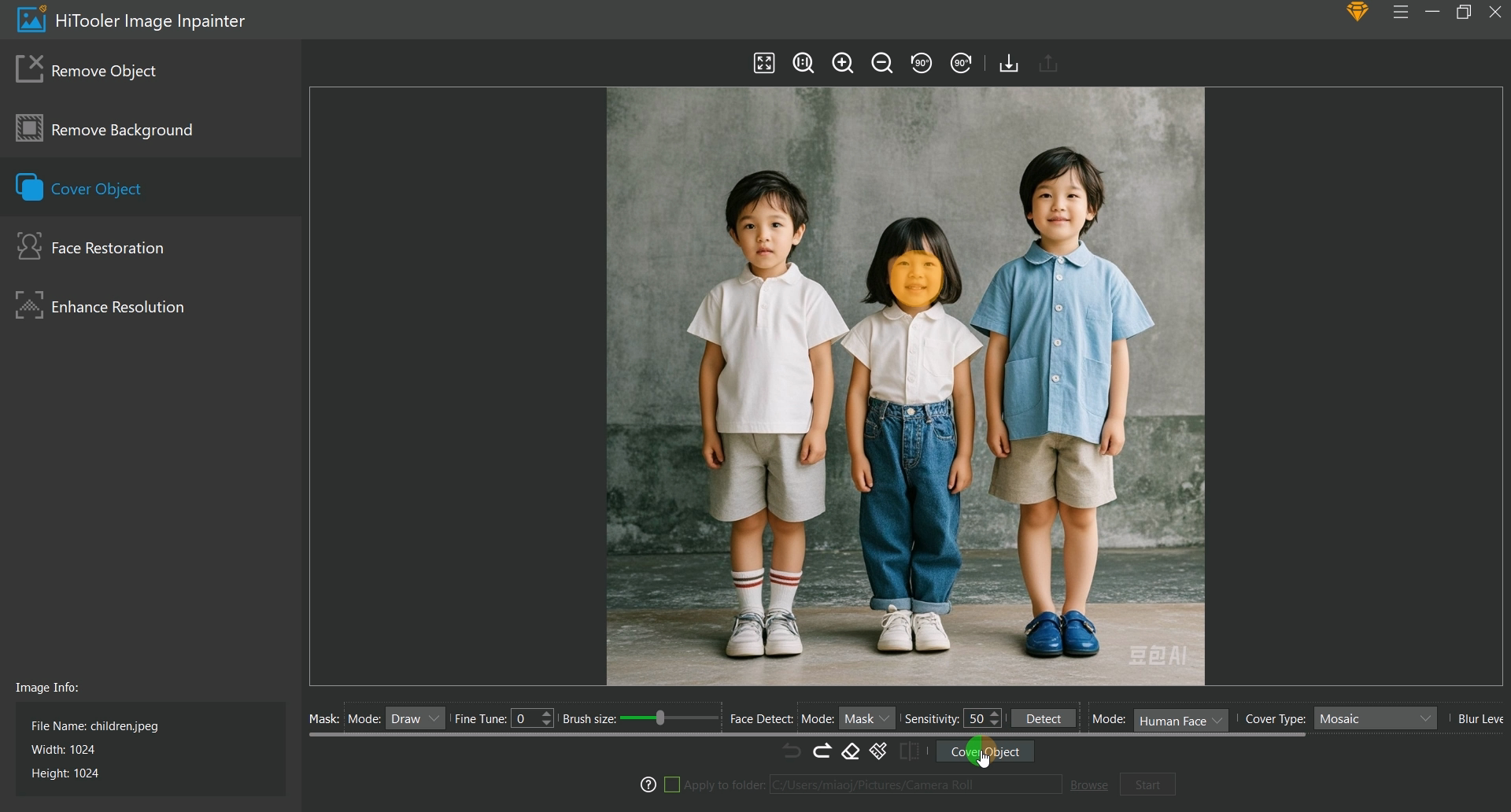
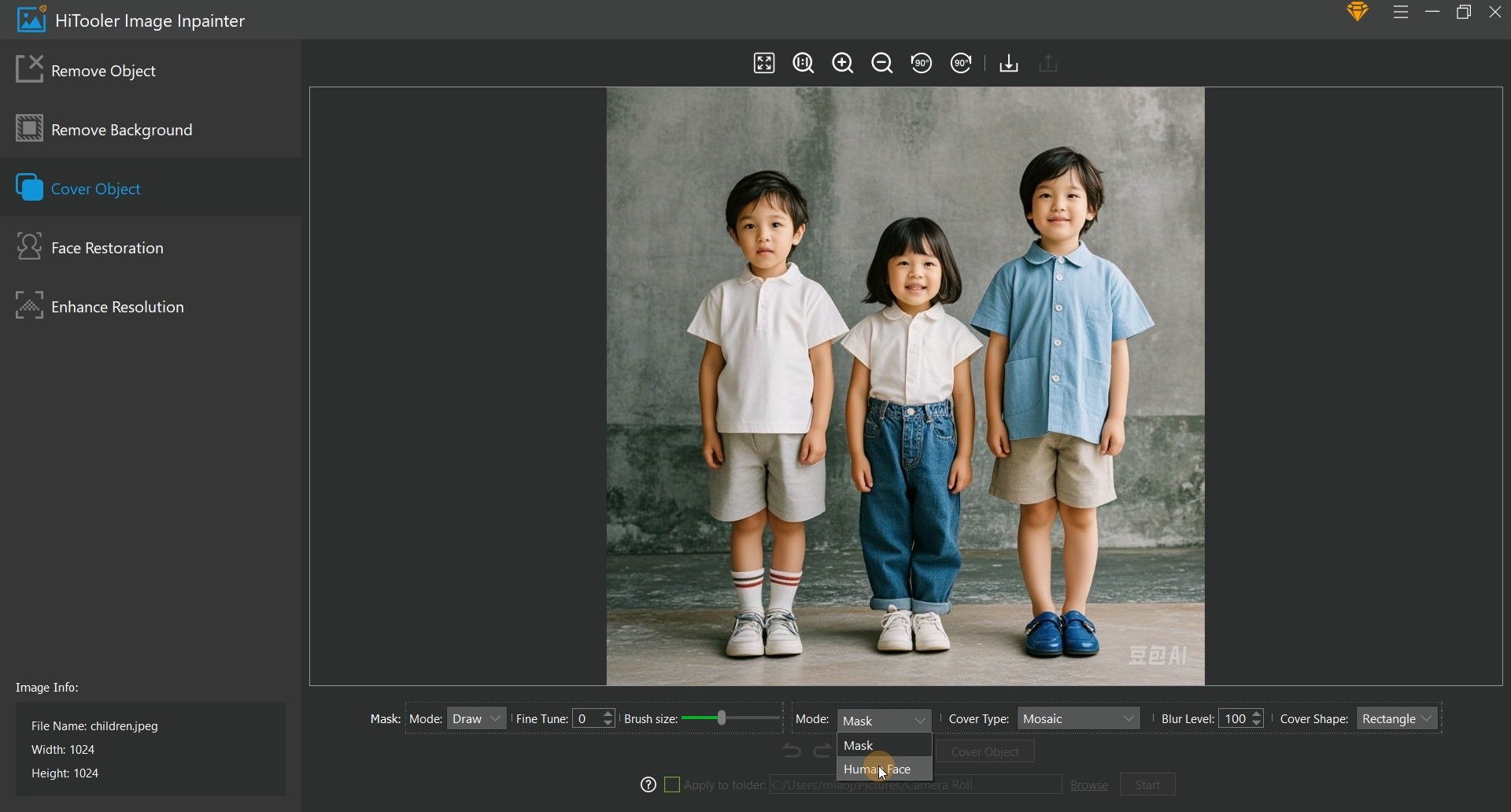
4. In the options area below the image area, select "Cover Object" mode as "Human Face", and then select the desired overlay type and overlay shape. If the "Face Detect" mode is "Mask", you also need to draw a mask on the face you want to blur.
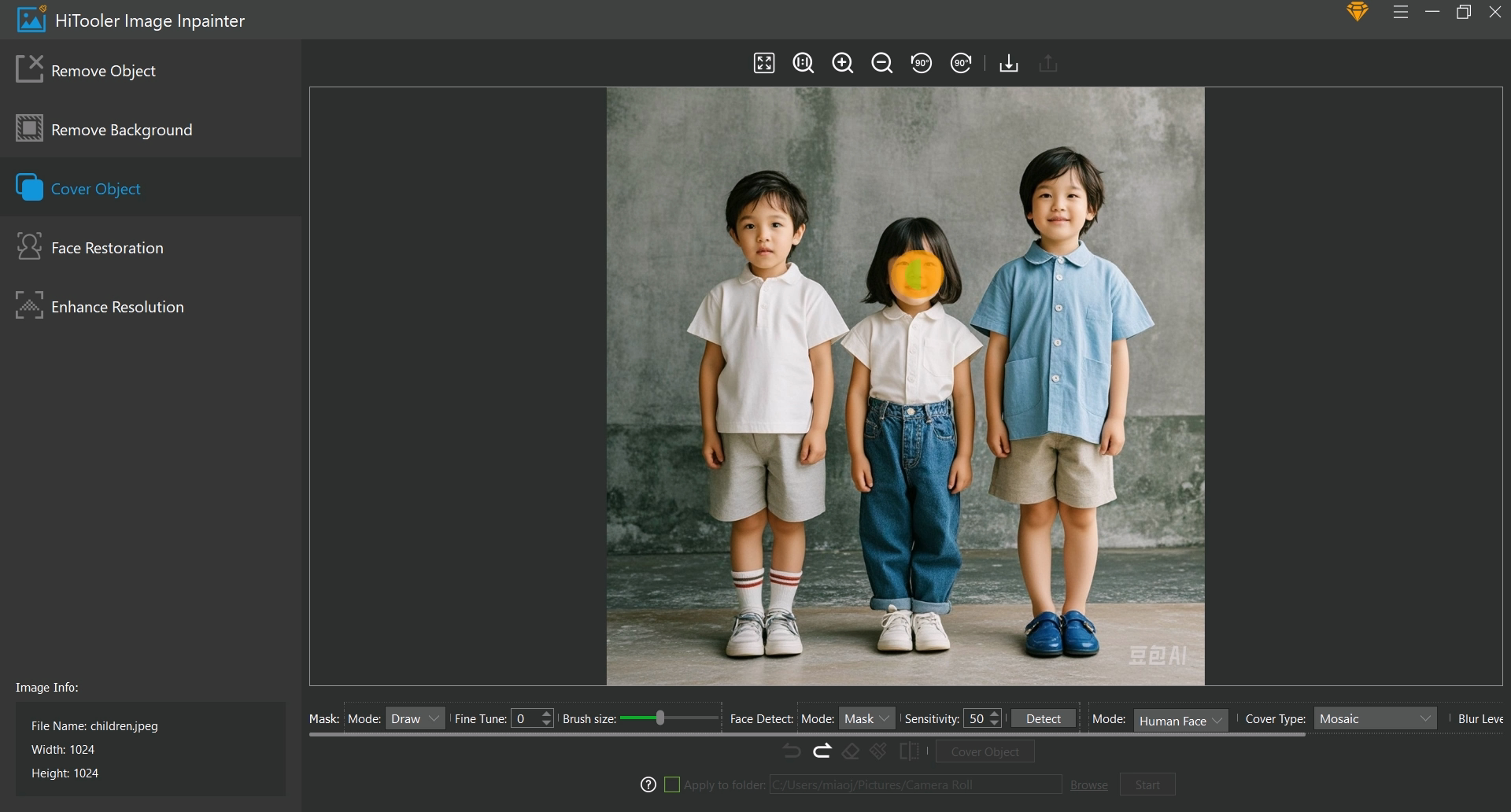
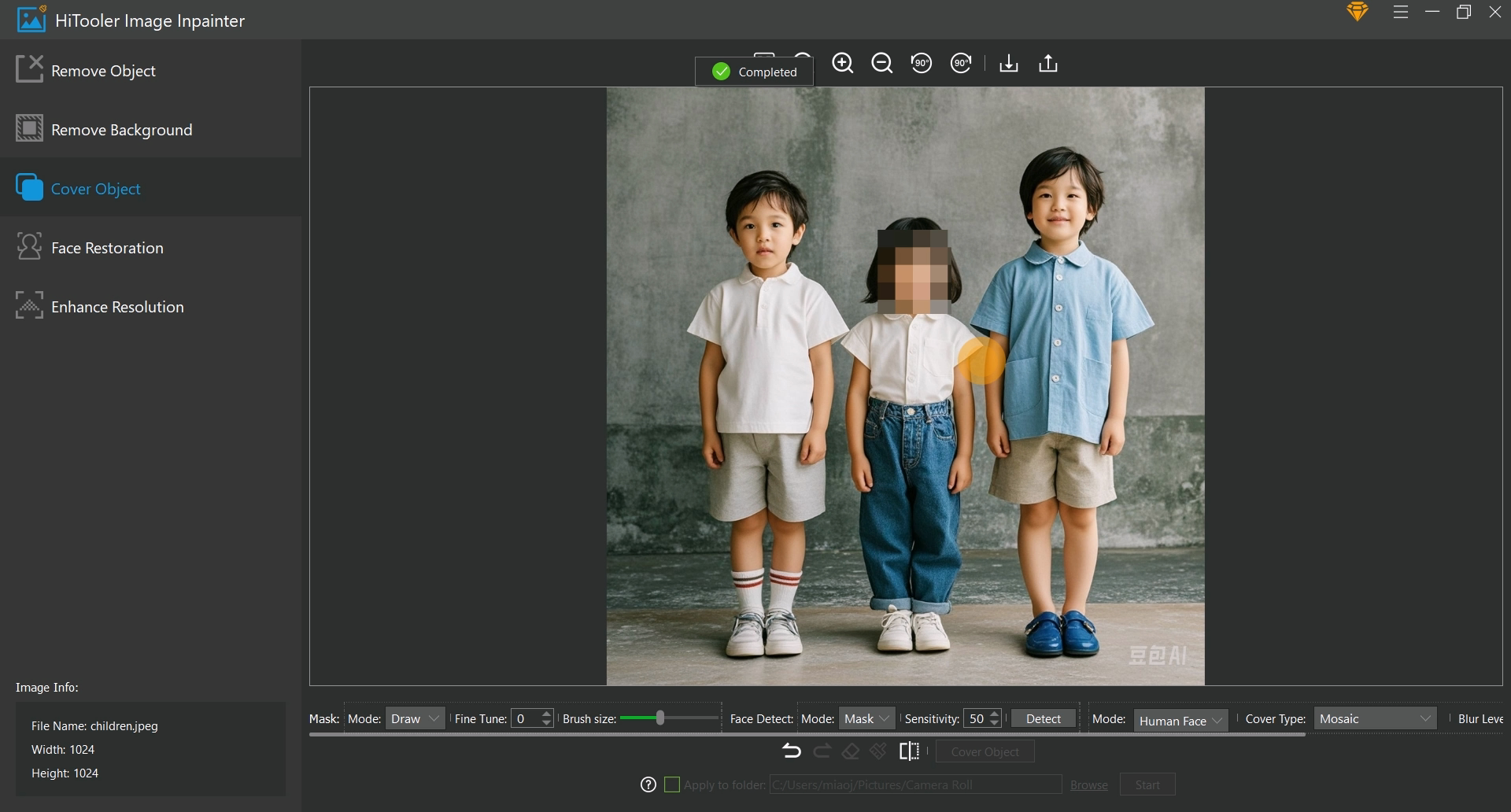
5. Click the "Cover Object" button below to complete the face blur. If the "Face Detect" mode is "Auto", the software will automatically detect faces on the image and blur all faces. If the "Face Detect" mode is "Mask", the software will also automatically detect faces on the image, but will only blur faces with masks.