Important Notice: Since the original domain (hitooler.com) is no longer active, it has been updated to the new domain (myhitooler.com). All software needs to be updated to the latest version to continue using it.
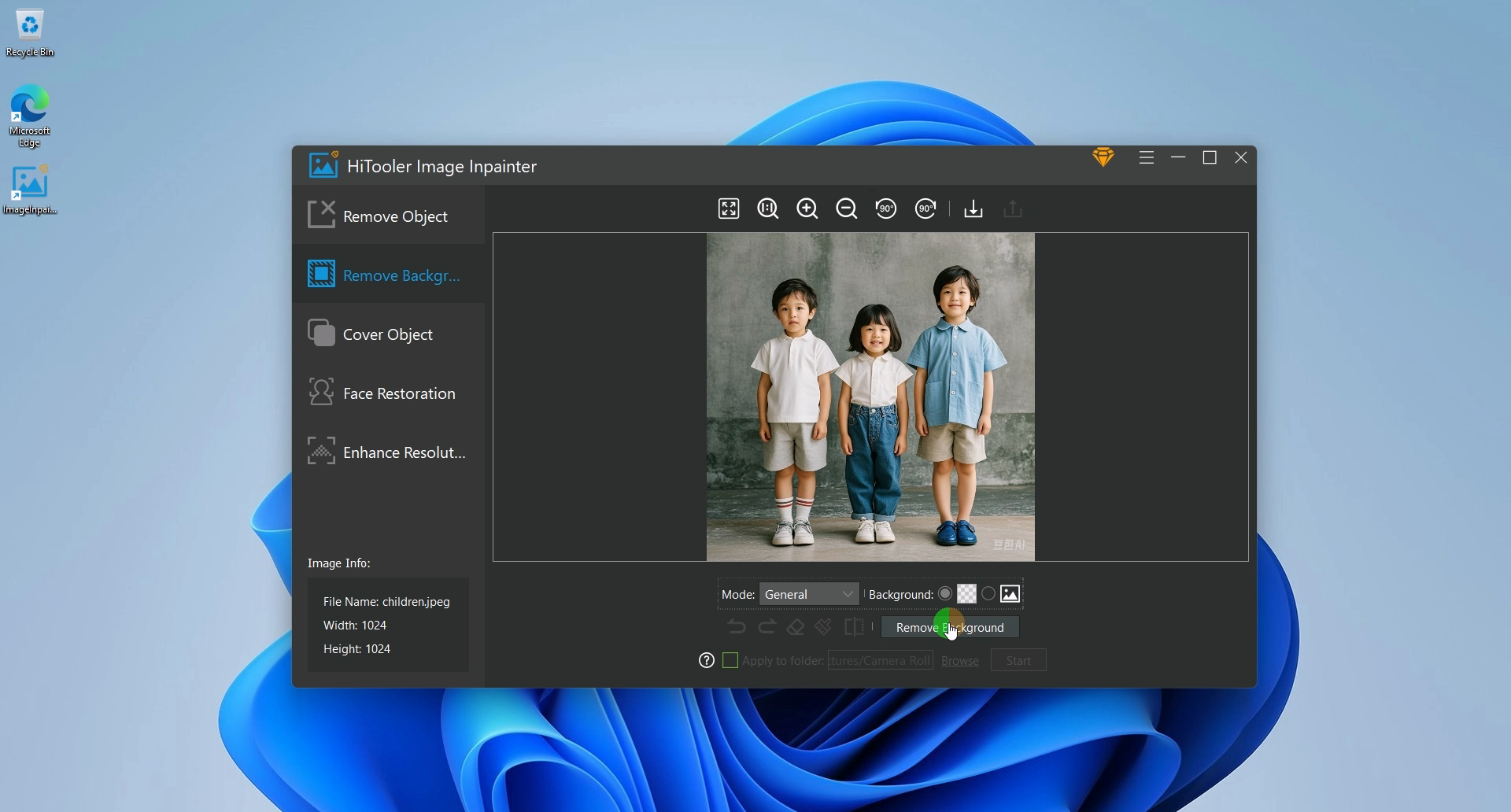
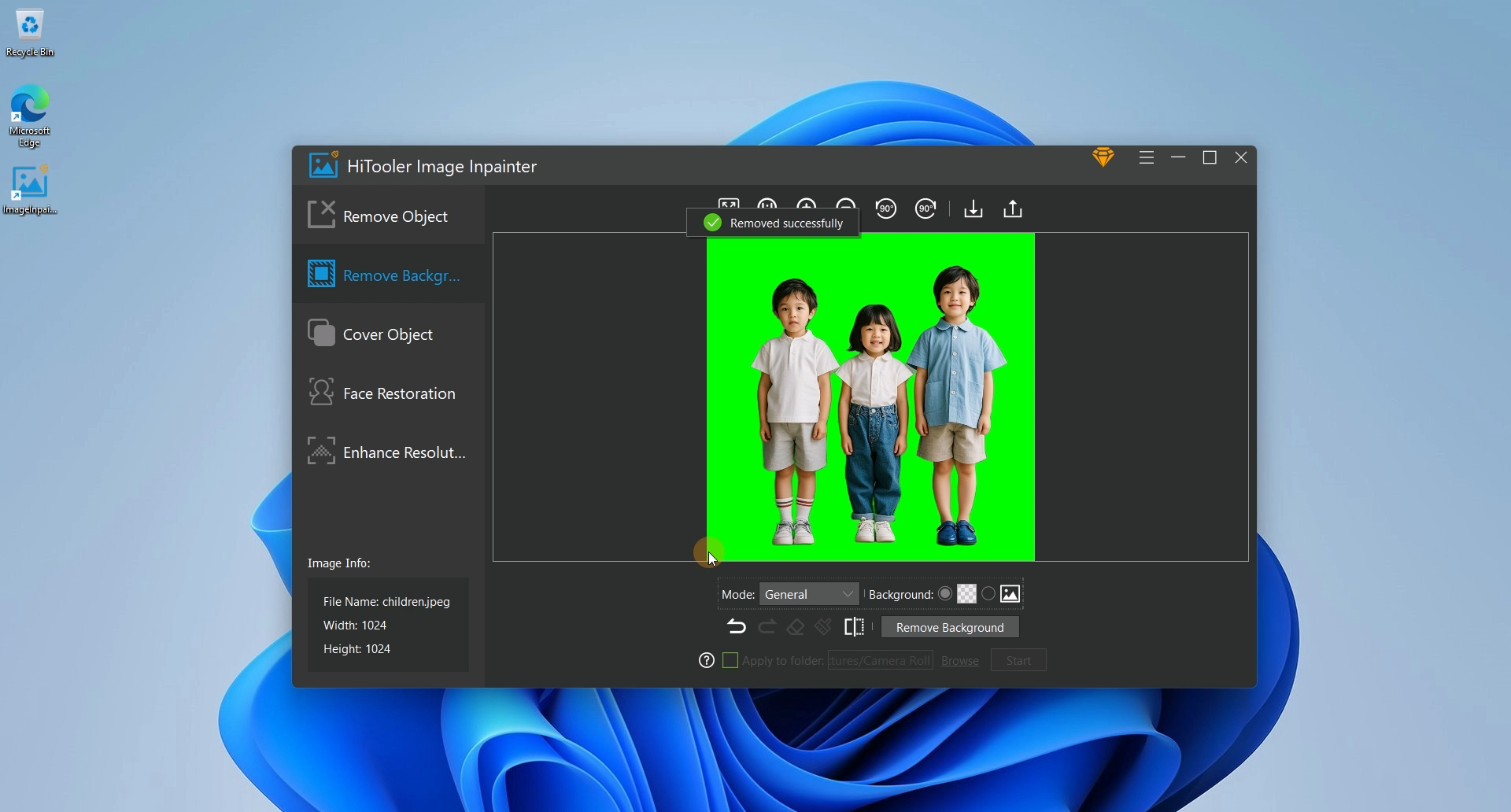
4. Select the mode to remove the background and the style to replace the background in the options area below the image area. You can replace the background with various colors and another picture.
5. Click the "Remove Background" button and wait for completion. Note that it will be a little slower when used for the first time because AI data needs to be loaded.








 Support Center
 Contact us